How to watermark and password-protect a PDF
When you send a draft to a board, or a report that shouldn’t be passed around, two things help. A watermark on every page says what the document is. A password makes sure only the right people can open it. Sheafly does both in one save on a Mac, iPhone, or iPad, without uploading the file anywhere.
Quick answer
- Add the PDF to Sheafly.
- Turn on Settings › Stamps › Add a watermark and choose Draft, Confidential, Copy, or your own text.
- Turn on Password-protect, then enter and verify a password and choose permissions.
- Choose Save Merged PDF.
Watermark and protect a PDF on a Mac
Our example is a two-page Q3 2026 Garden Report with charts and tables, being sent to a fictional garden committee.
- Add the PDF by dragging it into Sheafly or clicking +. You can add several files and they’ll be combined.
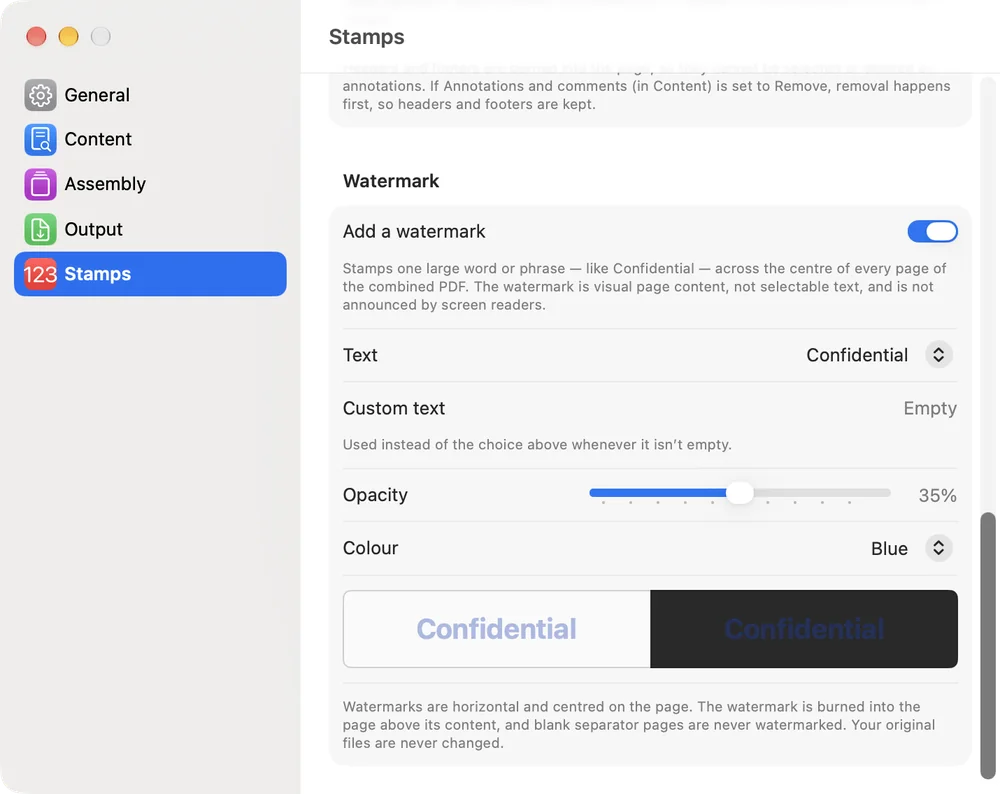
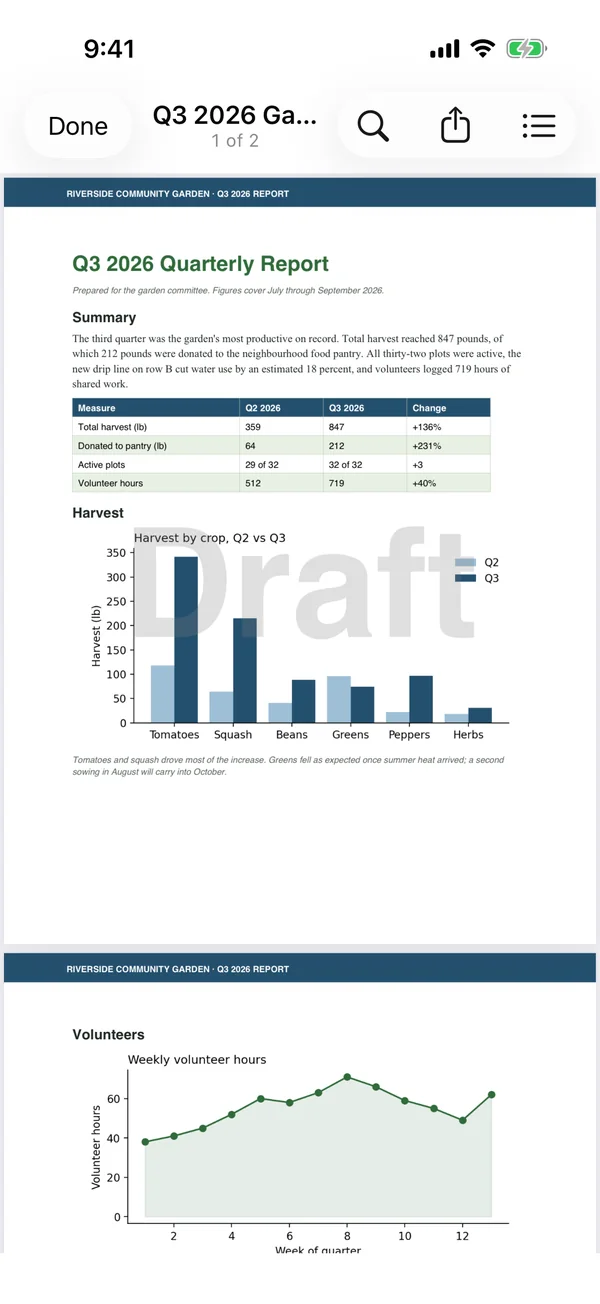
- Set up the watermark. Choose Stamps › Stamp Settings and turn on Add a watermark. Pick the Text (Draft, Confidential, or Copy) or type Custom text, then set the Opacity (10–60%) and Colour (grey, red, or blue). The preview shows how it looks over light and dark content. Later you can switch it on and off from Stamps › Add Watermark.
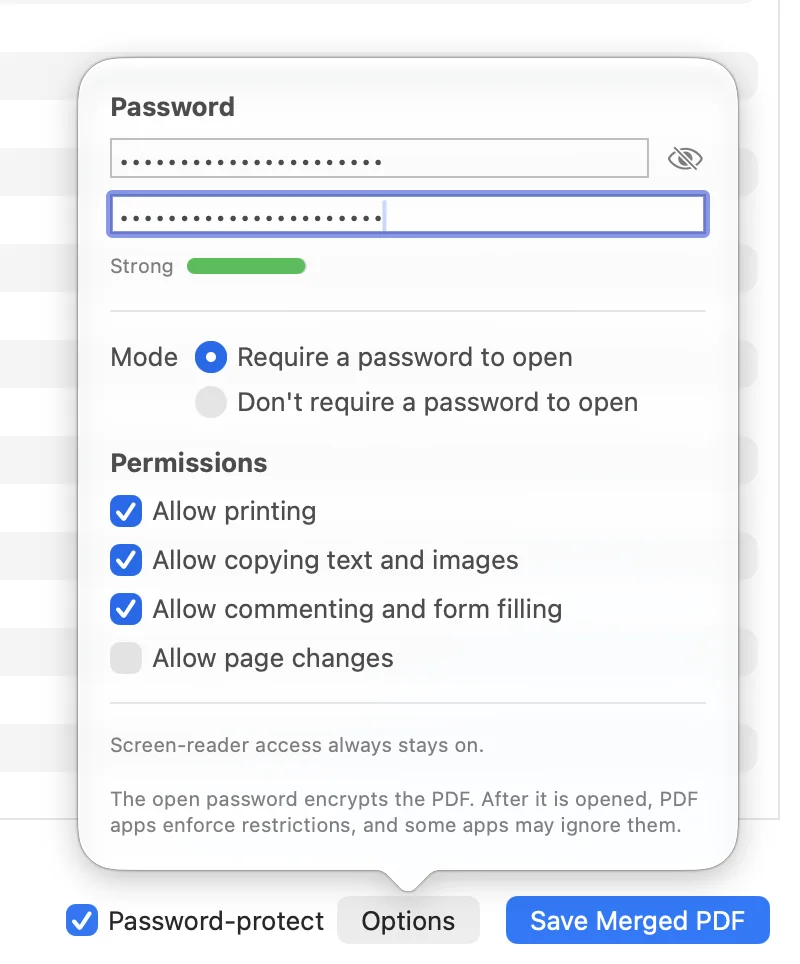
- Turn on the password. Tick Password-protect next to the Save button (⇧⌘P). The options open automatically: type the password, type it again to verify it, and check the strength meter.
- Choose the mode. Require a password to open encrypts the file. Don’t require a password to open leaves it readable but applies the permissions below.
- Choose permissions. Allow or block printing, copying text and images, commenting and form filling, and page changes. Screen-reader access always stays on.
- Save. Click Save Merged PDF.
On iPhone or iPad
- Tap New Session, then Choose Files…, and pick the PDF.
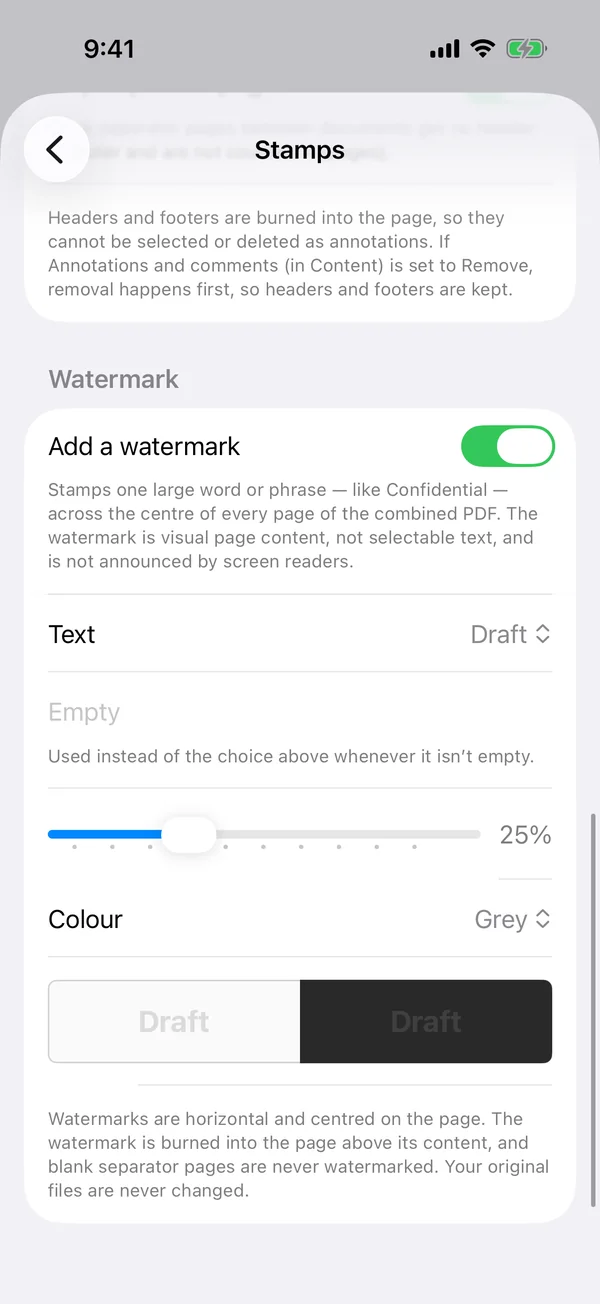
- Open Settings… › Stamps, scroll to Watermark, and turn on Add a watermark. On iPhone, Settings… is in the ⋯ (More) menu. On iPad, tap the gear button in the toolbar.
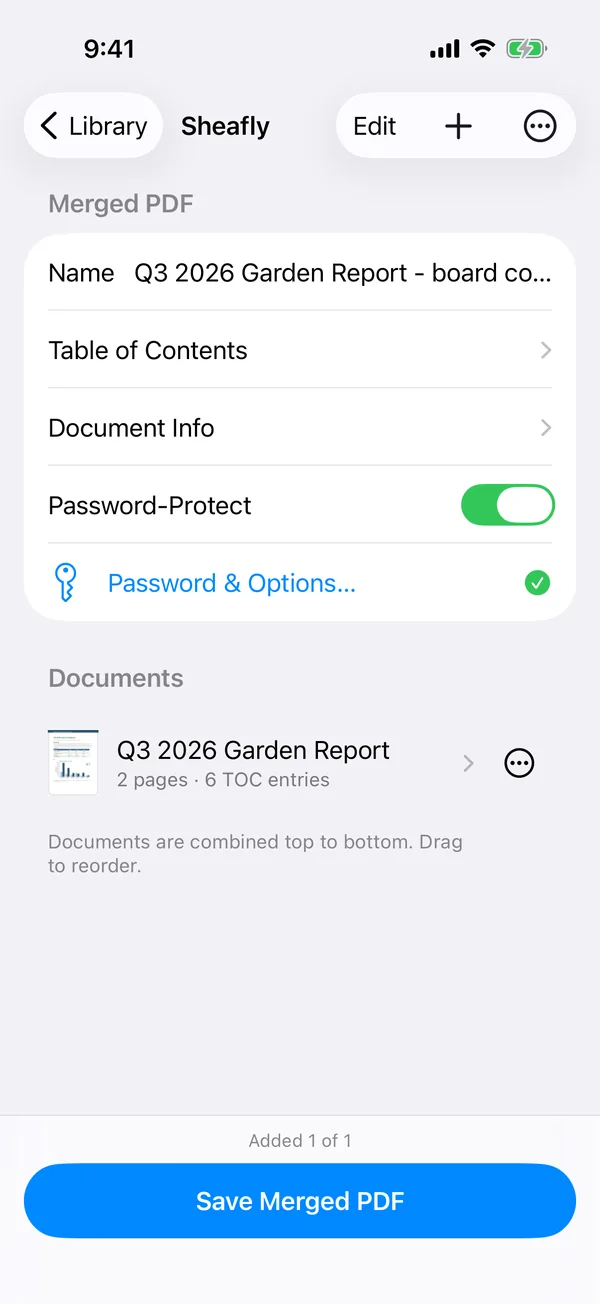
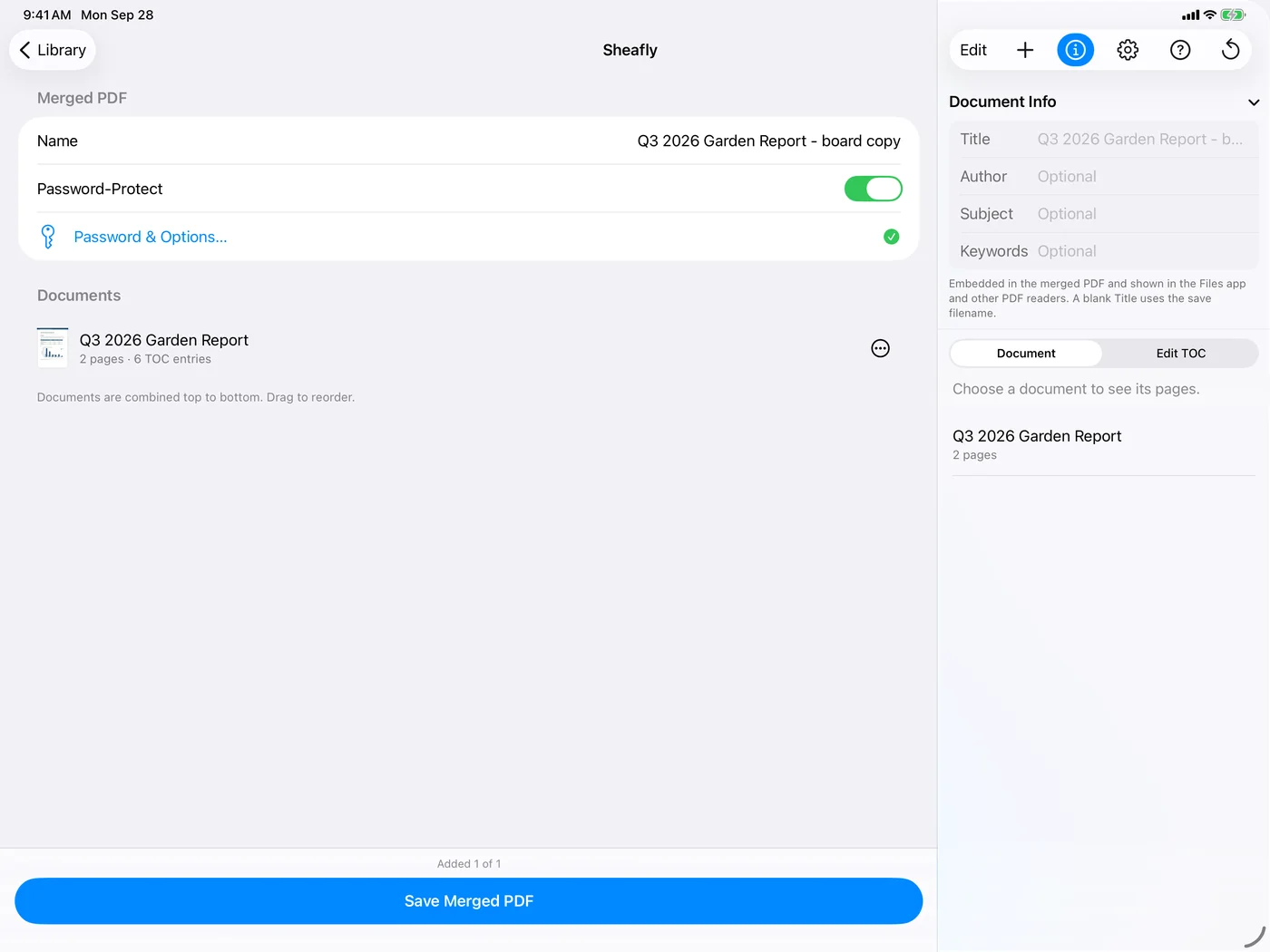
- Back on the session screen, turn on Password-Protect. A sheet opens for the password, the mode, and the permissions. Tap Done, and a green check appears next to Password & Options….
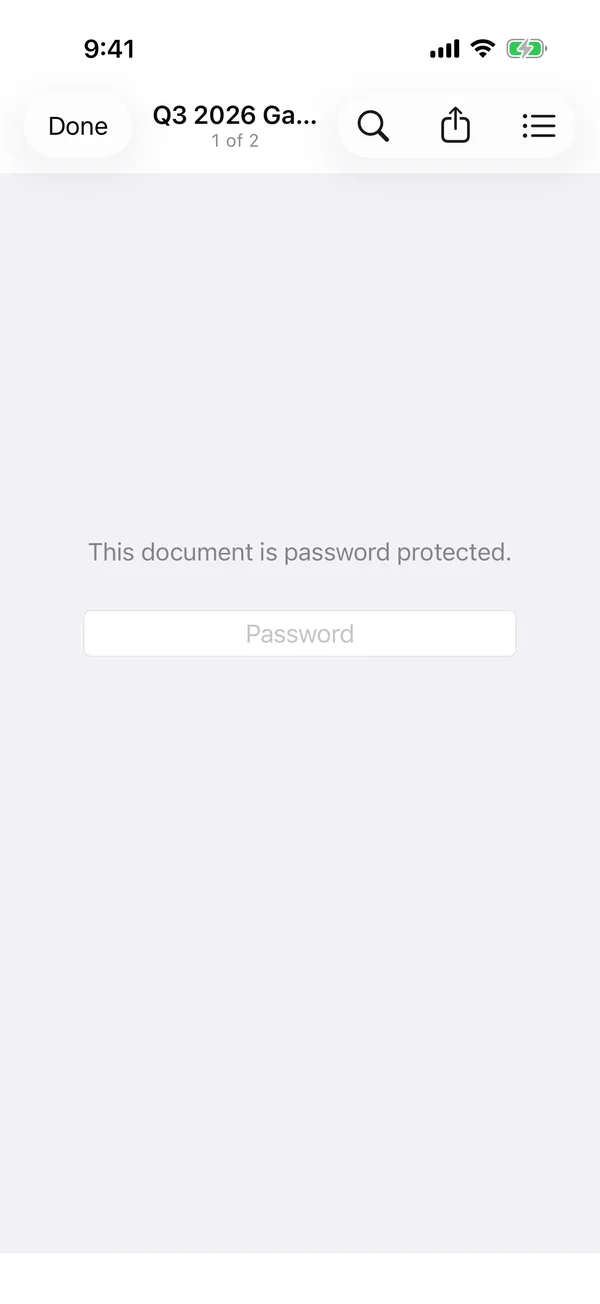
- Tap Save Merged PDF. The saved file now asks for its password before it opens, even in Sheafly’s own viewer.
Checking the result
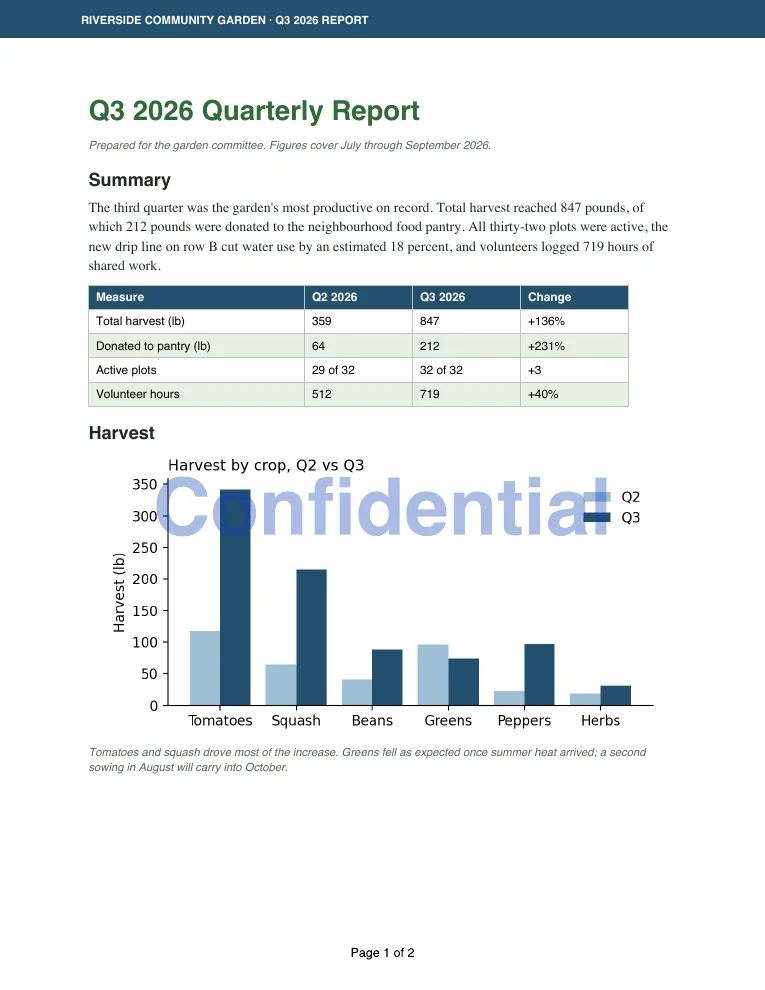
We inspected the Mac-saved report with an independent PDF tool (qpdf). It won’t open without the password, uses AES-128 encryption, and reports page assembly and other modifications as not allowed. Those are exactly the permissions we chose. Printing stays allowed. Here is page 1, rendered from the saved file after unlocking it.
Limits
- The watermark is burned into the page. It’s horizontal and centred, can’t be selected or deleted as an annotation, and isn’t read by screen readers. Blank separator pages and the generated contents page aren’t watermarked.
- Permissions aren’t encryption. PDF apps are expected to honour them, but some ignore them. For real protection, choose Require a password to open.
- Keep the password somewhere safe. Sheafly uses it only in memory while saving and never stores or sends it, so it can’t recover a forgotten one.
- Your original stays as it was. Sheafly writes a new, protected copy.
You can add page numbers or a date in the same pass. See how to add page numbers.

Try it on your own files
Sheafly is a one-time purchase on the App Store, and one purchase covers Mac, iPhone, and iPad. No subscription, no account, and your documents never leave your device.

Requires macOS 14 or later, or iOS/iPadOS 17 or later.
More Sheafly guides
- How to merge PDFs and keep their bookmarksCombine chapter files into one PDF with every bookmark still linked to the right page.
- How to add or edit a PDF’s table of contentsAdd, rename, indent and remove bookmarks, and print a linked contents page.
- How to make a scanned PDF searchable without uploading itOn-device OCR adds invisible, searchable text to image-only scans.
- How to combine images and PDFs into one PDF, with page numbersPhotos, screenshots and PDFs in one file, in your order, numbered continuously.