How to merge PDFs and keep their bookmarks
Putting several PDFs into one file is easy. Keeping their bookmarks is the hard part. Bookmarks are the clickable table of contents in a PDF app’s sidebar, and most mergers either drop them or leave them pointing at page numbers from the original files. This guide shows how to merge PDFs on a Mac, iPhone, or iPad with Sheafly and keep every bookmark pointing at the right page.
Quick answer
- Add your PDFs to Sheafly and put them in order. They merge top to bottom.
- Check the combined bookmarks in Edit TOC (Mac and iPad) or Table of Contents (iPhone), and tidy them if you like.
- Optionally turn on Settings › General › Add a Table of Contents page. Your bookmark edits stay put.
- Choose Save Merged PDF. Each file’s bookmarks come along, nested and re-pointed to their new pages, and Sheafly checks the saved file before it reports success.
Why bookmarks break when you merge
A PDF bookmark is a pointer to a page inside its own file. Once four chapters become one book, the first page of chapter 3 might be page 6 instead of page 1. A merger has to rebuild every pointer and keep the nesting, or throw the bookmarks away. Sheafly reads each file’s outline before merging. It adds one top-level entry per file, nests that file’s own entries under it, and points every one at its page in the finished PDF.
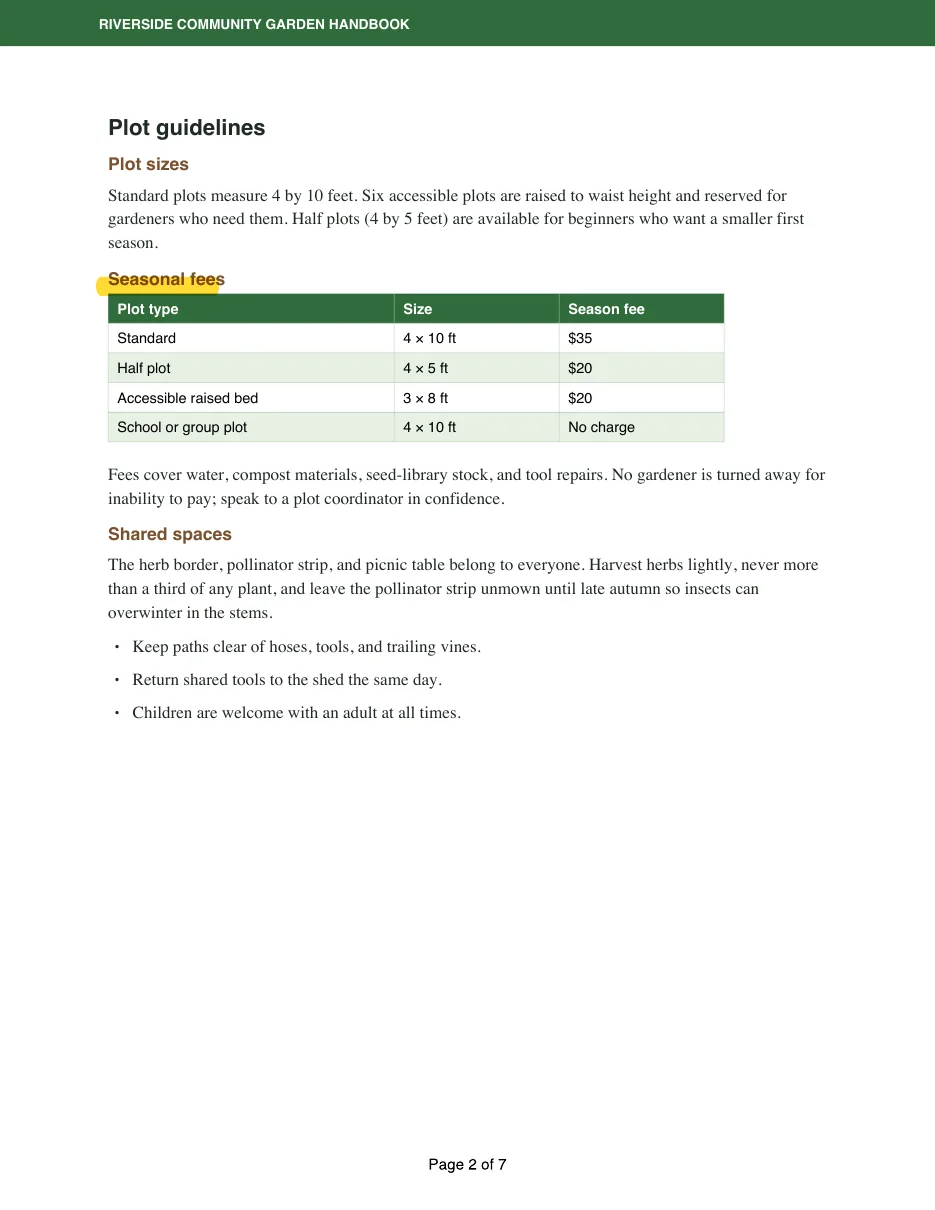
For this guide we merged four chapter PDFs of a fictional Riverside Community Garden Handbook. Between them they carry 25 bookmarks, up to three levels deep, and one chapter has a reviewer’s highlight on it.
Merge PDFs on a Mac
- Add the PDFs. Drag them onto the Sheafly window, click +, choose File › Open (⌘O), or drop them on Sheafly’s Dock icon. You can mix in images too.
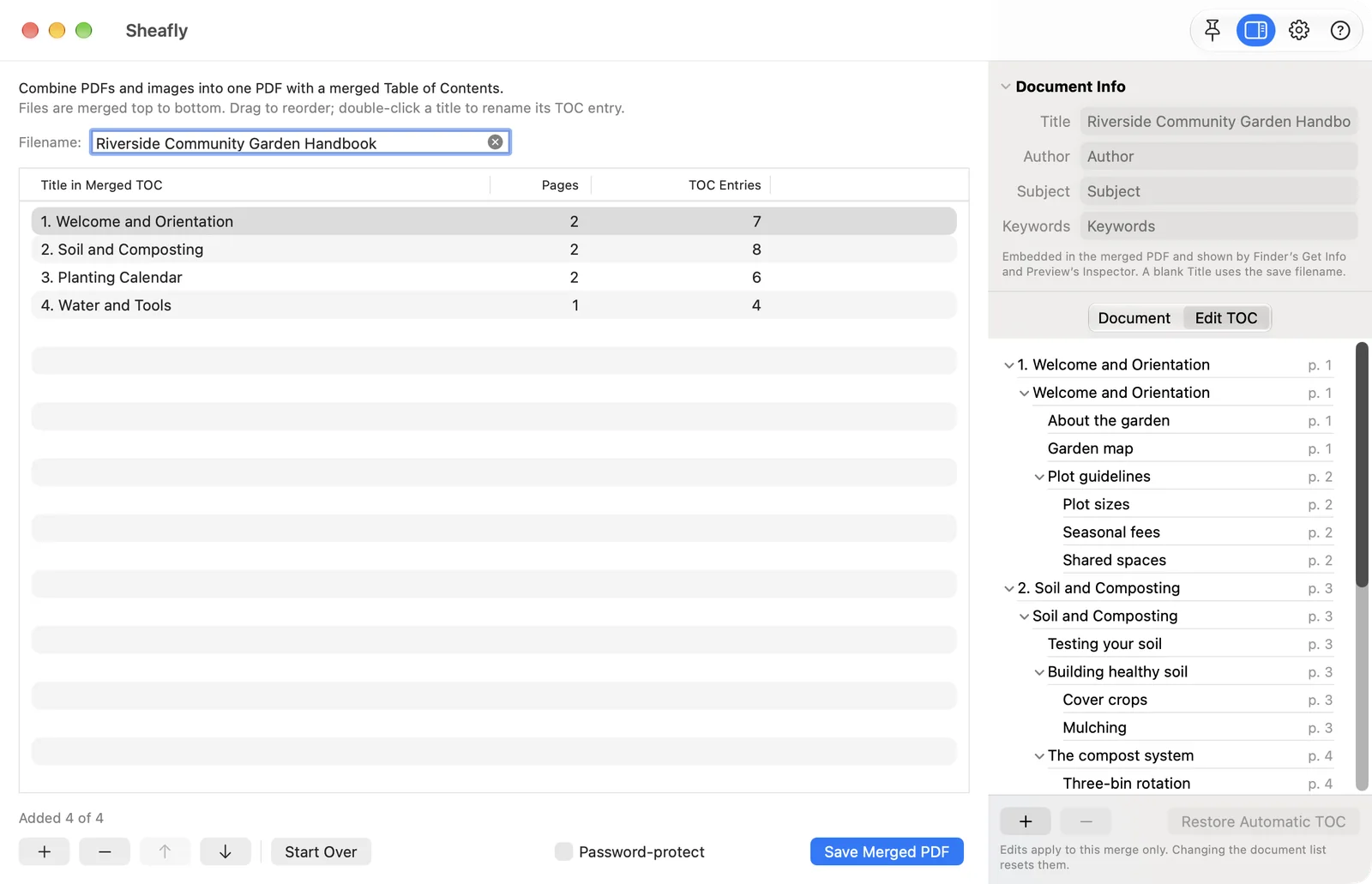
- Put them in order. Files are merged top to bottom. Drag rows to reorder, or select one and use the arrow buttons (⌥⌘↑ / ⌥⌘↓). The TOC Entries column shows how many bookmarks each file brings.
- Name the chapters. Each file becomes a top-level bookmark named after its Title in Merged TOC. Double-click a title to rename the bookmark. The file on disk keeps its name.
- Review the combined bookmarks. Click the Inspector toolbar button (⌥⌘I) and choose Edit TOC. The page numbers are the real pages of the finished file.
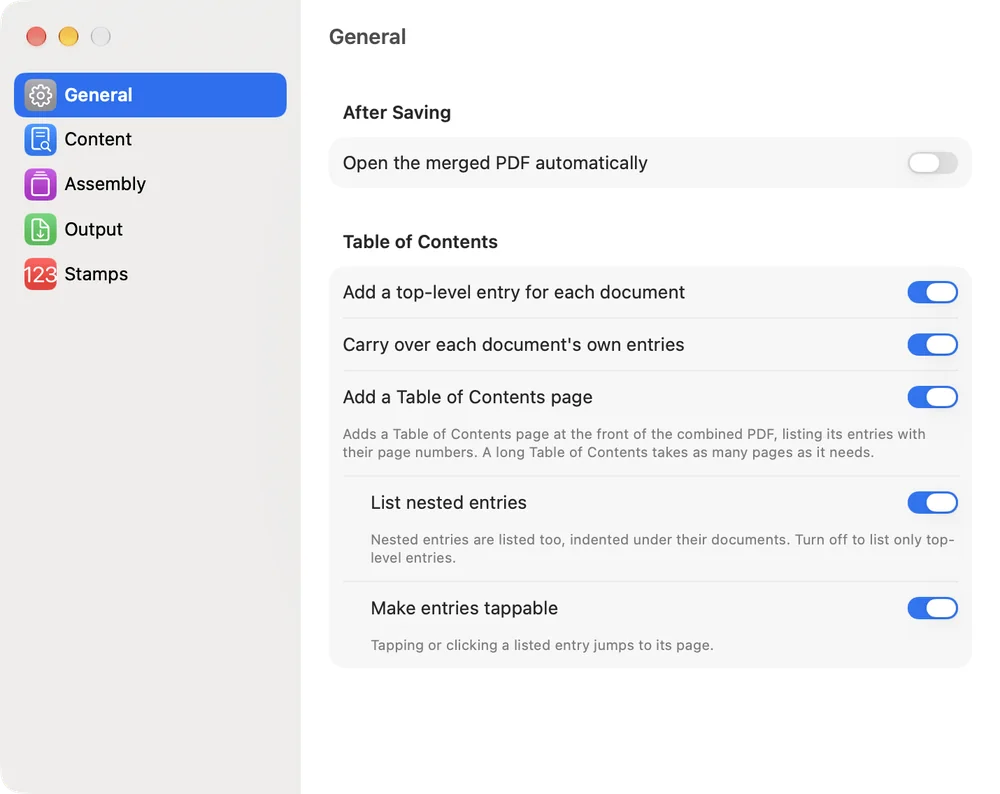
- Optional: add a printed contents page. Open Settings (⌘,) › General and turn on Add a Table of Contents page. Its entries are clickable links by default. Turn off List nested entries if you only want one line per file.
- Save. Click Save Merged PDF and choose where to put it. Sheafly re-opens the finished file and checks it before reporting success. If Open the merged PDF automatically is on, the file then opens in your default PDF app.
Your edits stay putRenamed, removed, and added bookmarks survive changes in Settings, such as turning on the contents page, flattening comments, or adding blank pages between documents. Only changing which documents are combined, their order, or which of their pages are included starts the table of contents afresh. See how to edit a PDF’s table of contents for renaming, removing and adding entries.
Merge PDFs on iPhone or iPad
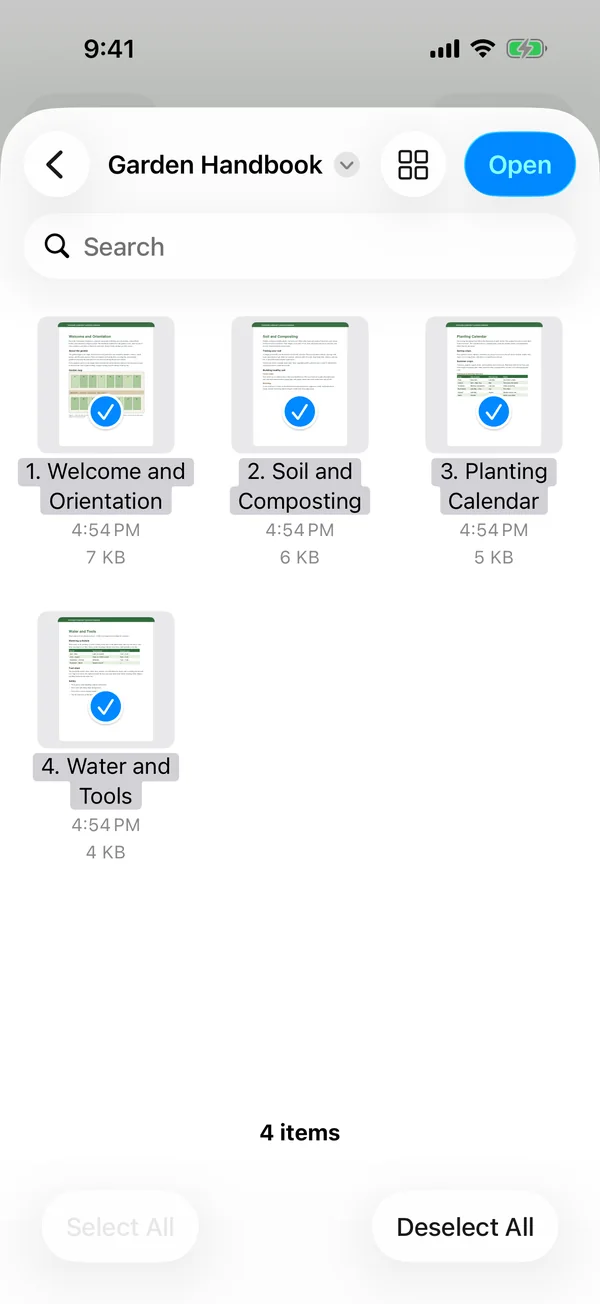
- Start a session and pick the files. Tap New Session, then Choose Files…. In the Files picker, select every PDF you want from On My iPhone, iCloud Drive, or another provider, and tap Open.
- Check the order. The picker doesn’t guarantee an order (ours arrived shuffled). Tap Edit, select a document, and use the ↑ and ↓ buttons or drag the handles, then tap the checkmark (Done).
- Review the bookmarks. On iPhone, tap Table of Contents under Merged PDF. For a printed contents page, open Settings… › General. On iPhone, Settings… is in the ⋯ (More) menu. On iPad, tap the gear button in the toolbar.
- Save. Name the file and tap Save Merged PDF. There’s no save dialog. The PDF goes into Sheafly’s PDF Library, which also shows up in the Files app under Sheafly. If Open the merged PDF automatically is on (it is by default), the file opens in the built-in viewer, and the list button shows its bookmarks. To send it elsewhere, use Share or Save to Files… from the library.
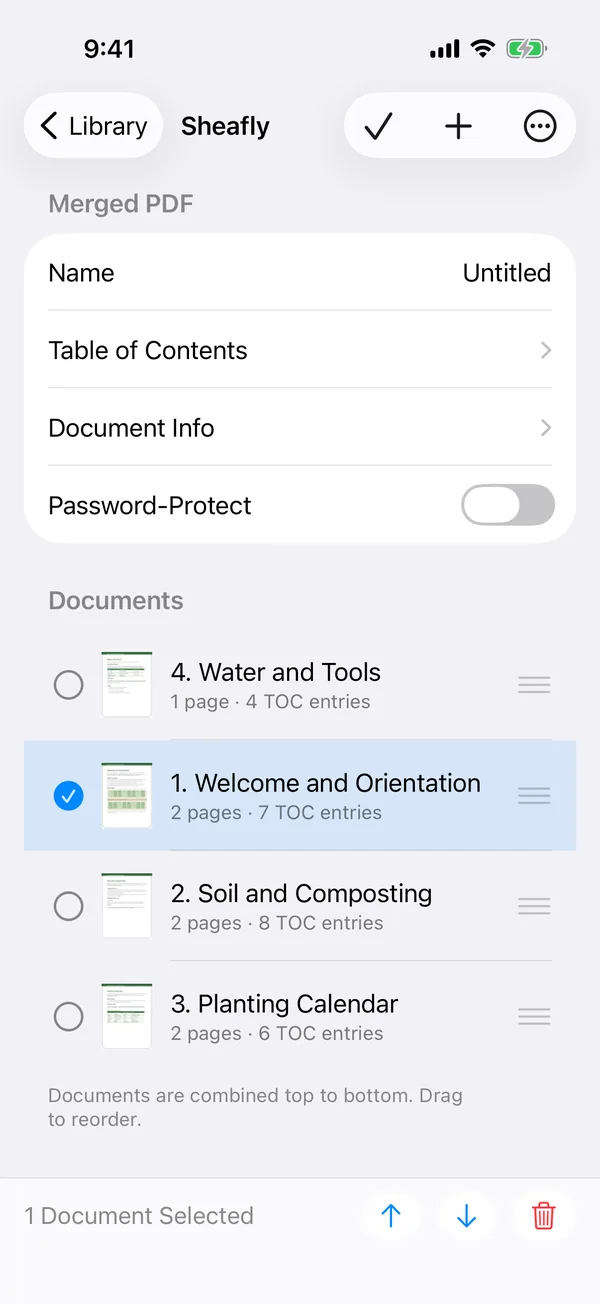
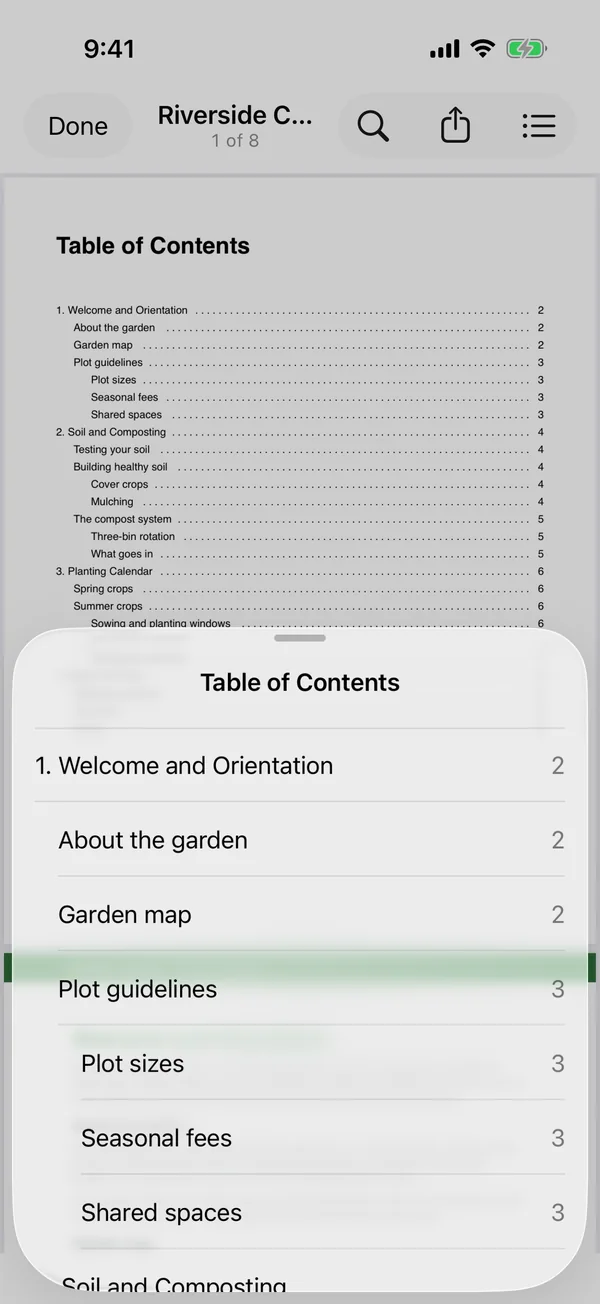
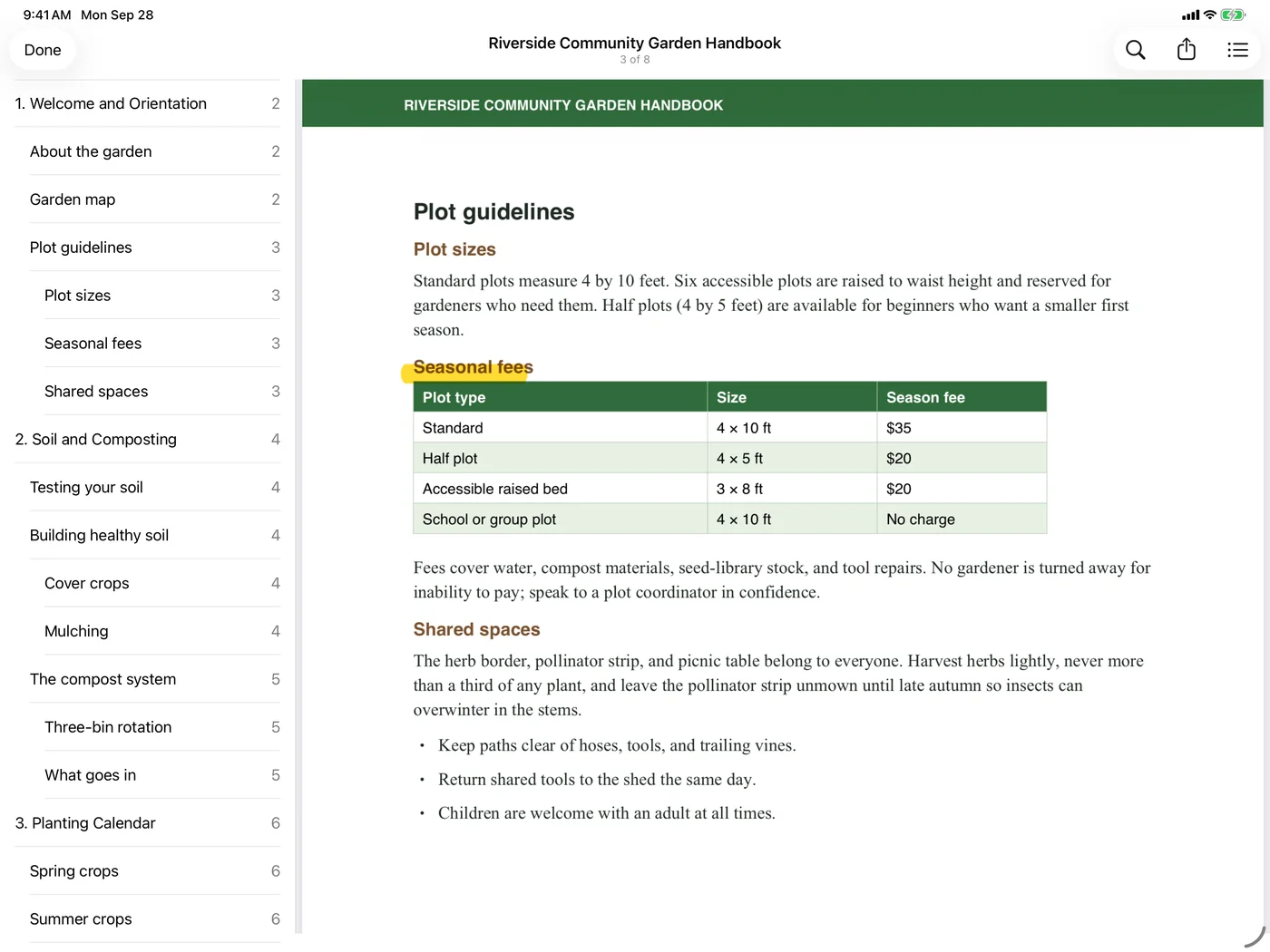
On iPad the steps are the same. In a full-width window, the document details and the Edit TOC tab sit in an inspector column beside the document list, and the viewer can keep the bookmarks open in a sidebar.
Flattening comments? The bookmarks still come through
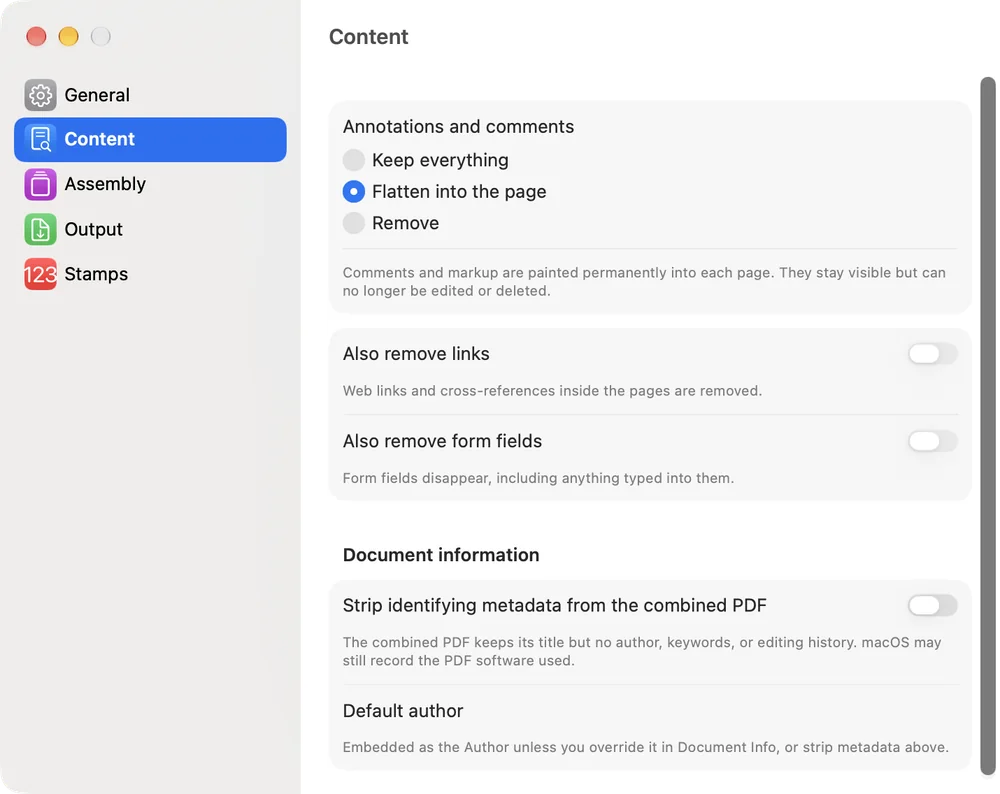
If your PDFs carry comments or highlights that should become a permanent part of the page, open Settings › Content and choose Flatten into the page. The markup stays visible but can no longer be edited or deleted. Sheafly flattens only the pages’ own markup, so the bookmarks and the links on a generated contents page keep working.
Every save is checkedSheafly 2.1 re-opens each PDF it saves and compares it with what it wrote. If any Table of Contents entry or contents-page link didn’t make it into the file, the save ends with a warning that says what went missing instead of a success message. That check was added after a change in macOS 27 and iOS/iPadOS 27 caused Sheafly 2.0 to save flattened merges with a contents page but no bookmarks. In our test on macOS 27, version 2.0 saved this handbook with 0 bookmarks and 25 contents-page links that went nowhere. Version 2.1 fixes it. Update if you use these settings.
What the merged file looks like
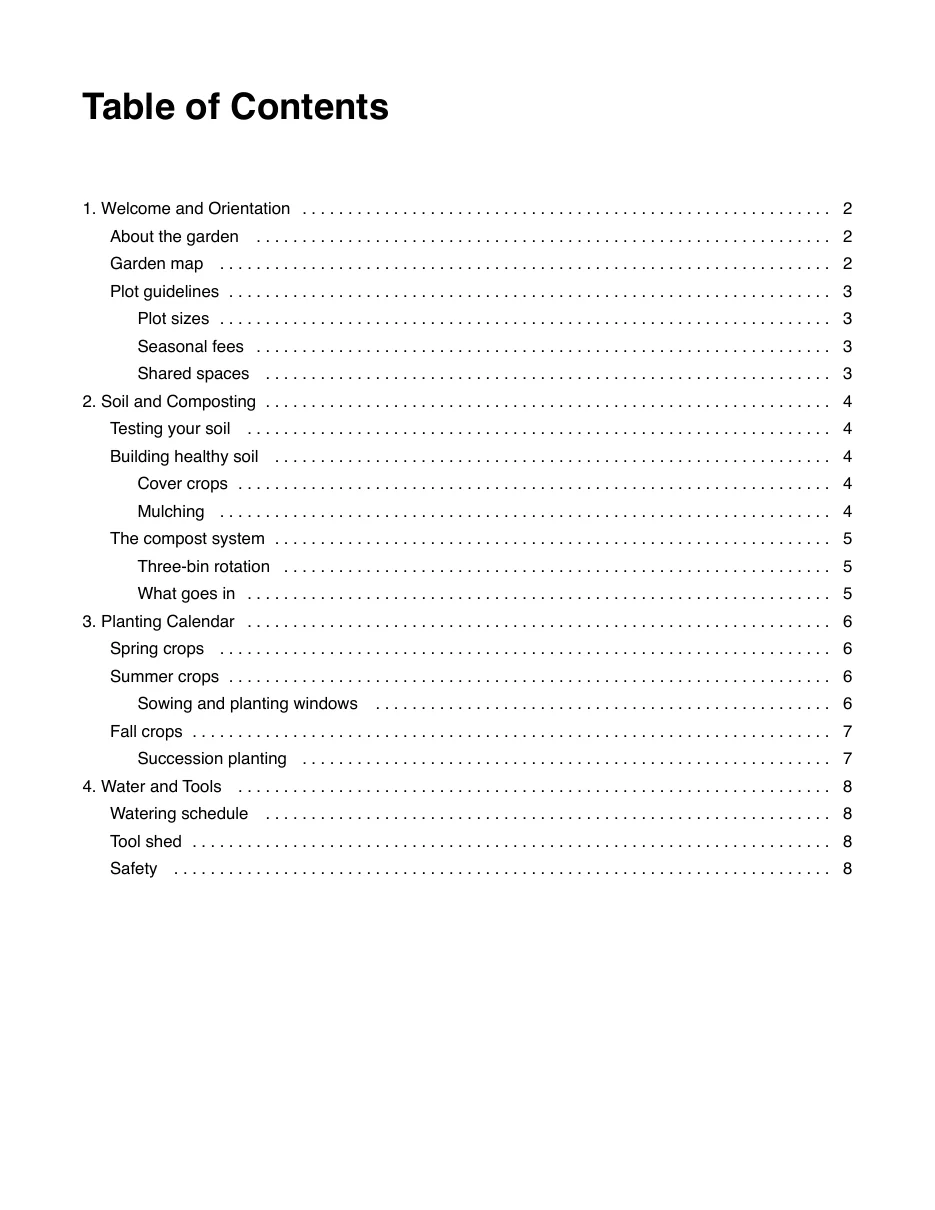
We saved the handbook on a Mac, an iPhone, and an iPad. Each time we tidied away the duplicate chapter titles and turned on Flatten into the page, a Table of Contents page, and page-number footers. Then we checked every file with two independent PDF readers (qpdf and Apple’s PDFKit). Each has 8 pages and all 25 bookmarks, nested in three levels, each opening the right page. All 25 lines on the contents page are working links, and the reviewer’s highlight is painted into the page with no editable markup left.
Limits
- Bookmarks to pages you left out keep their label but lose their link, and Sheafly lists them as warnings. The same goes for the rare bookmark that uses an action Sheafly can’t carry over.
- Files without bookmarks still get a top-level entry. Add more by hand in the TOC editor.
- Locked PDFs are fine. Sheafly asks for each file’s password by name when you add it, uses it only to unlock the file, and never stores or sends it. The merged PDF has no password unless you turn on password protection for it.
- Your originals are never modified. Sheafly writes a new file.
- Everything runs on your device. Sheafly has no network access, so nothing is uploaded.

Try it on your own files
Sheafly is a one-time purchase on the App Store, and one purchase covers Mac, iPhone, and iPad. No subscription, no account, and your documents never leave your device.

Requires macOS 14 or later, or iOS/iPadOS 17 or later.
More Sheafly guides
- How to add or edit a PDF’s table of contentsAdd, rename, indent and remove bookmarks, and print a linked contents page.
- How to make a scanned PDF searchable without uploading itOn-device OCR adds invisible, searchable text to image-only scans.
- How to watermark and password-protect a PDFStamp Draft or Confidential on every page, then encrypt and restrict the file.
- How to combine images and PDFs into one PDF, with page numbersPhotos, screenshots and PDFs in one file, in your order, numbered continuously.