How to make a scanned PDF searchable without uploading it
A scanned PDF is usually just pictures of pages, so you can’t search it, select a sentence, or have it read aloud. Optical character recognition (OCR) fixes that by adding an invisible text layer. Most OCR websites want you to upload the file first. Sheafly recognizes the text on your Mac, iPhone, or iPad using Apple’s built-in Vision text recognition, and nothing leaves the device.
Quick answer
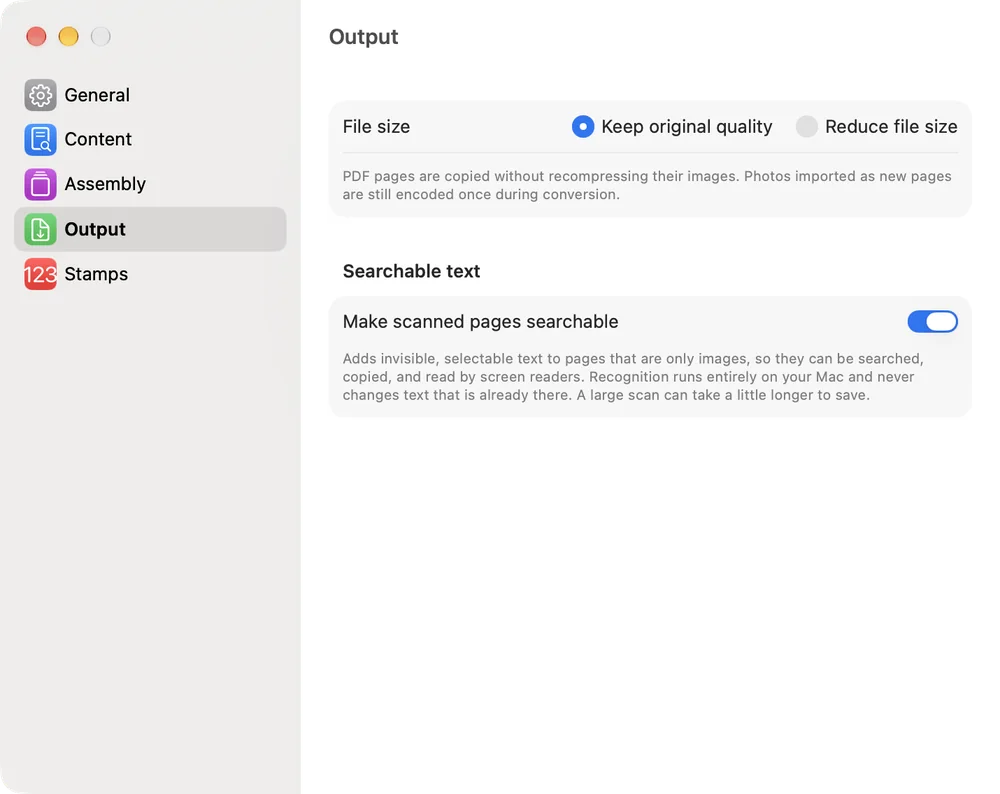
- In Sheafly, turn on Settings › Output › Make scanned pages searchable.
- Add the scanned PDF, or several. They’ll be combined.
- Choose Save Merged PDF. Sheafly recognizes text on image-only pages as it saves.
- Search the result with ⌘F in any PDF app, or Find in Sheafly’s viewer on iPhone or iPad.
The test scan
We used a two-page typed Tool Shed Inventory and Repair Log, saved the way a scanner would: each page a slightly tilted image on off-white paper, with specks and a staple shadow, and no text layer. Searching the original for “wheelbarrow” finds nothing.
Make a scan searchable on a Mac
- Turn on recognition. Open Settings (⌘,) › Output and switch on Make scanned pages searchable. It stays on for future merges until you turn it off.
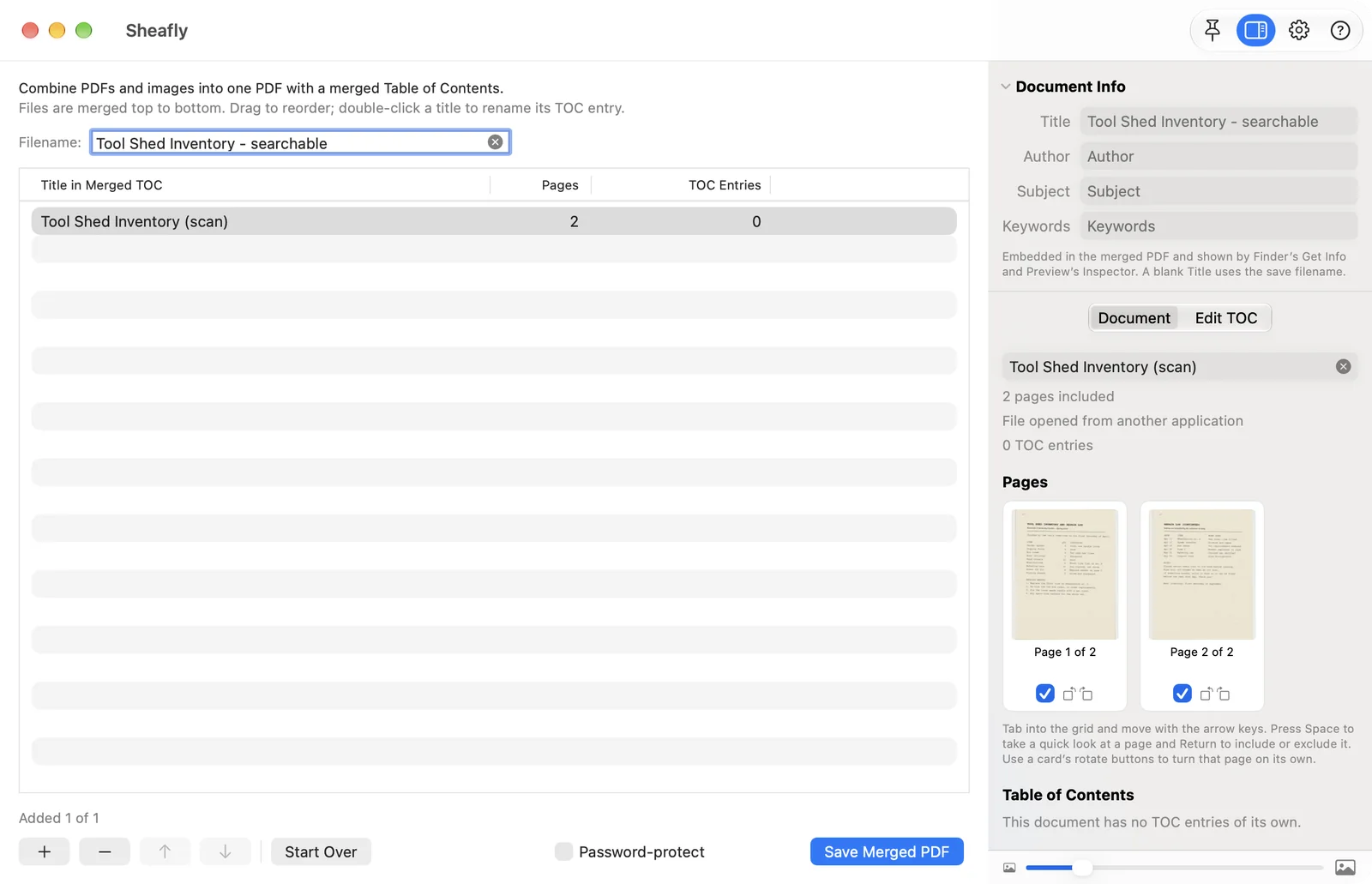
- Add the scan. Drag it into the Sheafly window or click +. The inspector’s Document tab shows its pages. Sheafly straightens pages the scanner saved sideways before reading them, and any rotation you add is applied to the finished PDF.
- Save. Click Save Merged PDF. When it’s done, the status line ends with “searchable text requested”.
Make a scan searchable on iPhone or iPad
- Tap New Session, then Choose Files… and pick the scan.
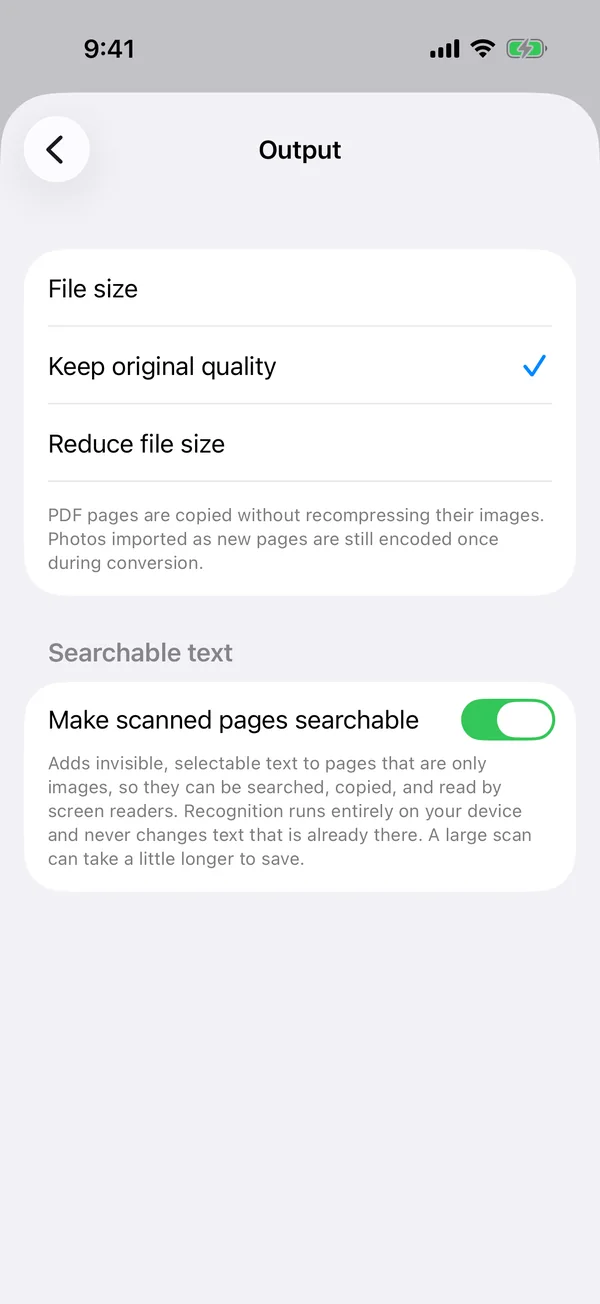
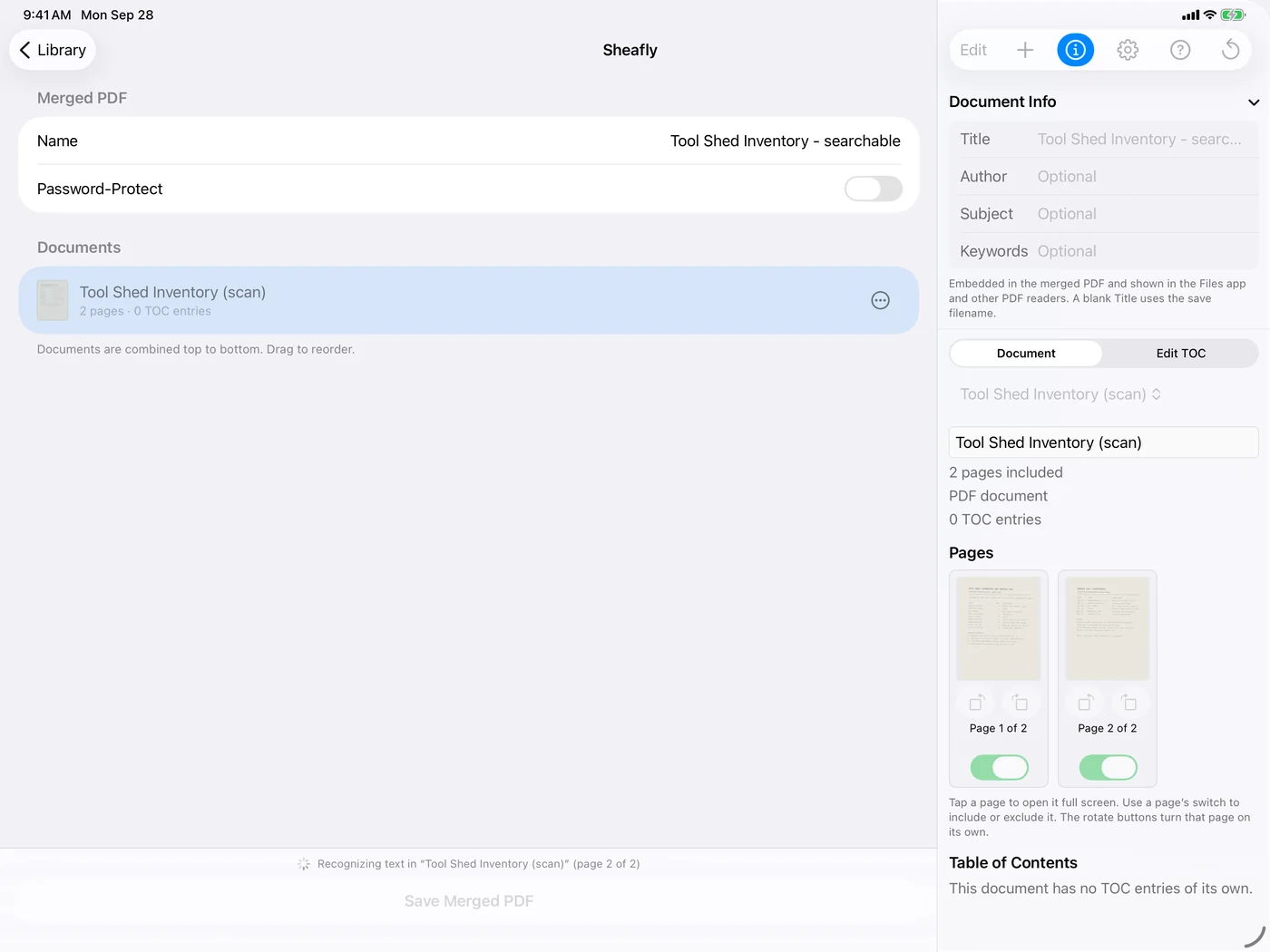
- Open Settings… › Output and turn on Make scanned pages searchable. On iPhone, Settings… is in the ⋯ (More) menu. On iPad, tap the gear button in the toolbar.
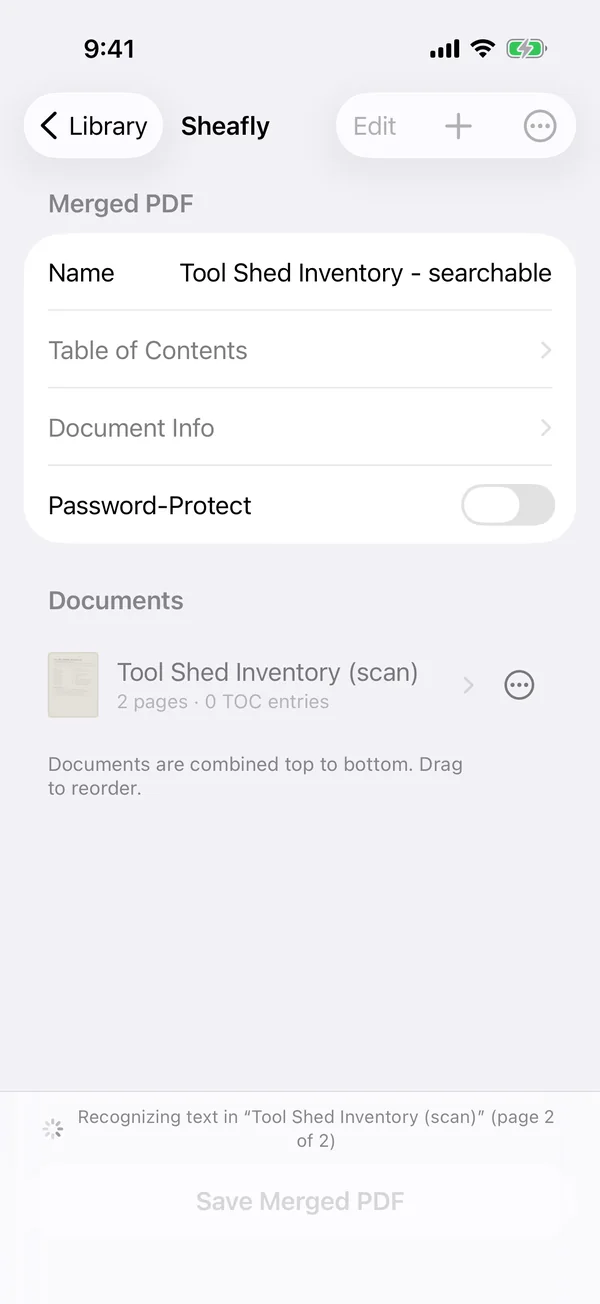
- Tap Save Merged PDF. The status line shows each page as it’s recognized, and the finished PDF opens in Sheafly’s viewer.
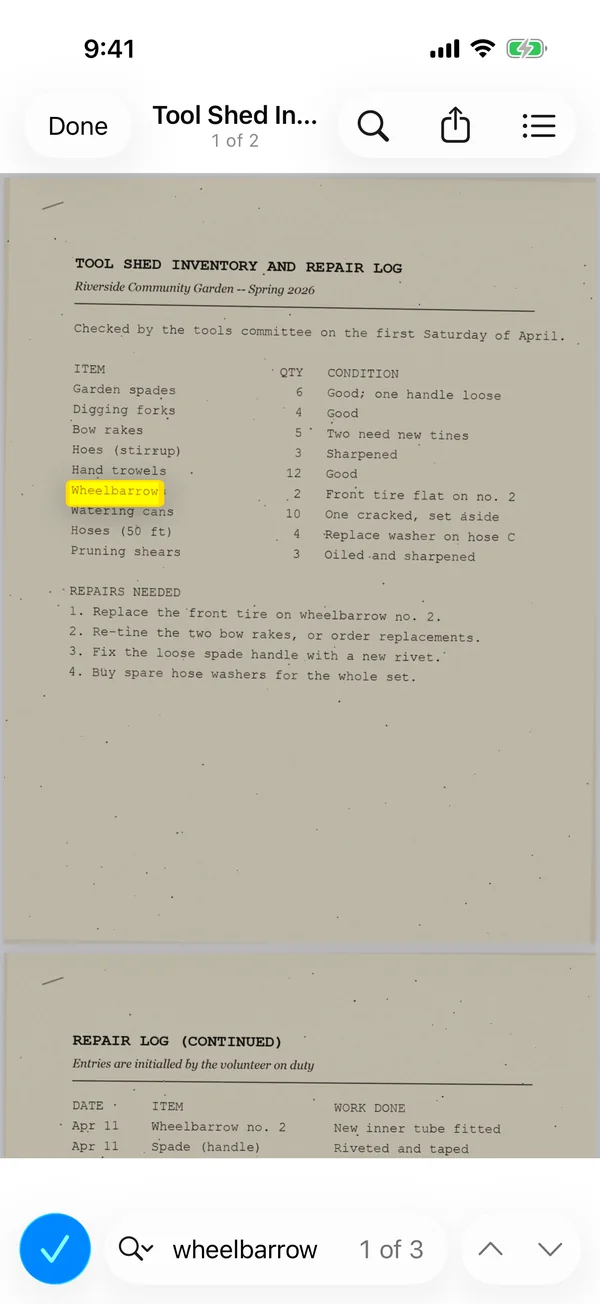
- Tap the magnifying glass (Find) and type a word from the scan to check it worked.
Checking the result
The saved file looks exactly like the scan, because the text layer is invisible. Search it and the difference shows: “wheelbarrow” now has 3 matches. The files saved on the Mac, the iPhone, and the iPad all give the same count. The highlights below were drawn from a search of the saved Mac file itself.
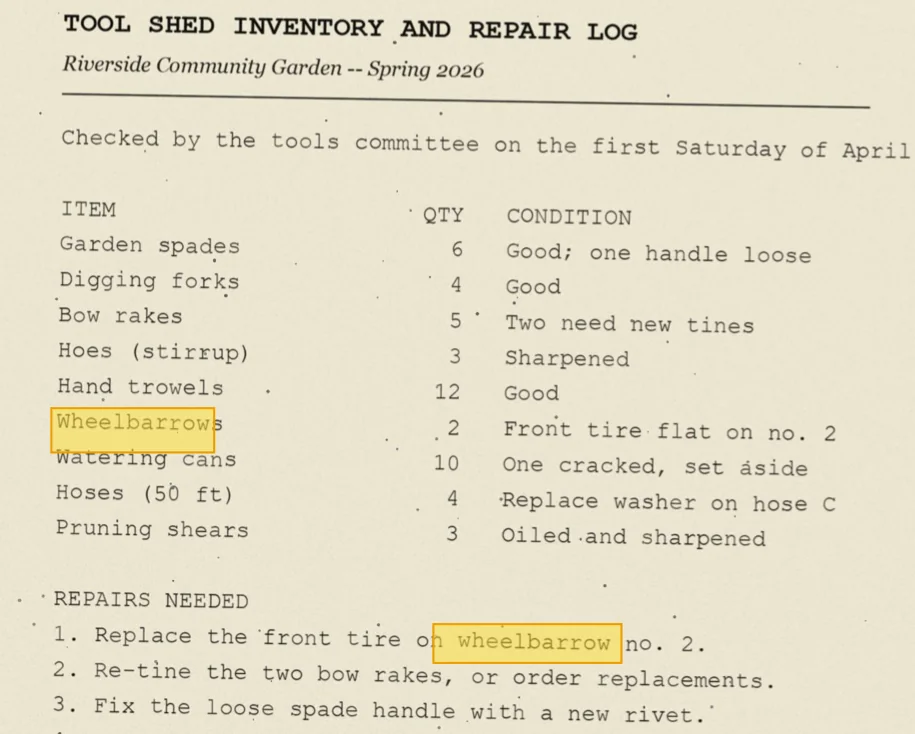
Recognition isn’t perfect. Pulling the text back out of our file gave, for example, Hand trowels 12 Good and Replace the front tire on wheelbarrow no. 2 exactly right, but also Büy spare hose washers, Iwo replacements ordered, and a few single-digit quantities in the table that weren’t picked up. That’s typical of a speckled, slightly tilted scan. Cleaner scans give cleaner text.
Limits
- Only image-only pages are recognized. Pages that already have text are left alone, so it’s safe to turn on for mixed documents.
- The page itself doesn’t change. You get a searchable, selectable, screen-reader-friendly PDF, not an editable Word document.
- Pages with no text, such as photos, produce a harmless warning that text couldn’t be recognized on that page.
- Big scans take longer to save. Sheafly remembers the recognized text with the document, so later previews and saves in the same session, or a saved session you reopen, are quicker.
- Sheafly isn’t a camera scanner. Scan with your scanner, or with Scan Documents in the Files app on iPhone or iPad, then open the PDF in Sheafly.

Try it on your own files
Sheafly is a one-time purchase on the App Store, and one purchase covers Mac, iPhone, and iPad. No subscription, no account, and your documents never leave your device.

Requires macOS 14 or later, or iOS/iPadOS 17 or later.
More Sheafly guides
- How to merge PDFs and keep their bookmarksCombine chapter files into one PDF with every bookmark still linked to the right page.
- How to add or edit a PDF’s table of contentsAdd, rename, indent and remove bookmarks, and print a linked contents page.
- How to watermark and password-protect a PDFStamp Draft or Confidential on every page, then encrypt and restrict the file.
- How to combine images and PDFs into one PDF, with page numbersPhotos, screenshots and PDFs in one file, in your order, numbered continuously.