How to combine images and PDFs into one PDF, with page numbers
Photos from an event, a few screenshots, and a one-page flyer, all in a single PDF you can share or print. Sheafly takes images and PDFs together, puts each picture on a normal sheet of paper, keeps everything in the order you choose, and can stamp continuous page numbers across the whole thing. It does all of this on your Mac, iPhone, or iPad.
Quick answer
- Add your images and PDFs to Sheafly. Each image becomes a page on Letter or A4 paper, whichever is usual where you live.
- Put them in order. They’re combined top to bottom.
- For page numbers, turn on Settings › Stamps › Add headers and footers and use
Page {page} of {pages}. - Choose Save Merged PDF.
Choose the page size for pictures
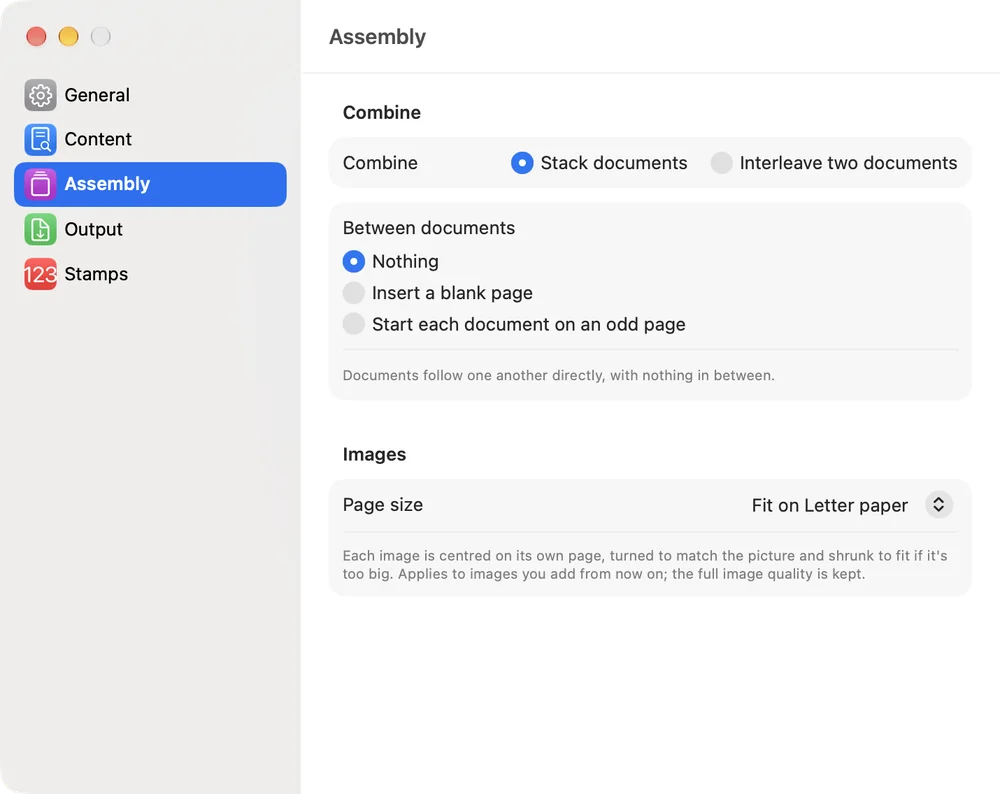
Phones and cameras label almost every photo “72 dpi”, whatever its real size, so a PDF tool that trusts the label turns a phone photo into a page several feet wide. Sheafly doesn’t. By default each picture is centred on its own sheet of Letter or A4 paper, turned to match the picture, and shrunk to fit if it’s too big. Small pictures are never blown up, and the full image quality is kept either way.
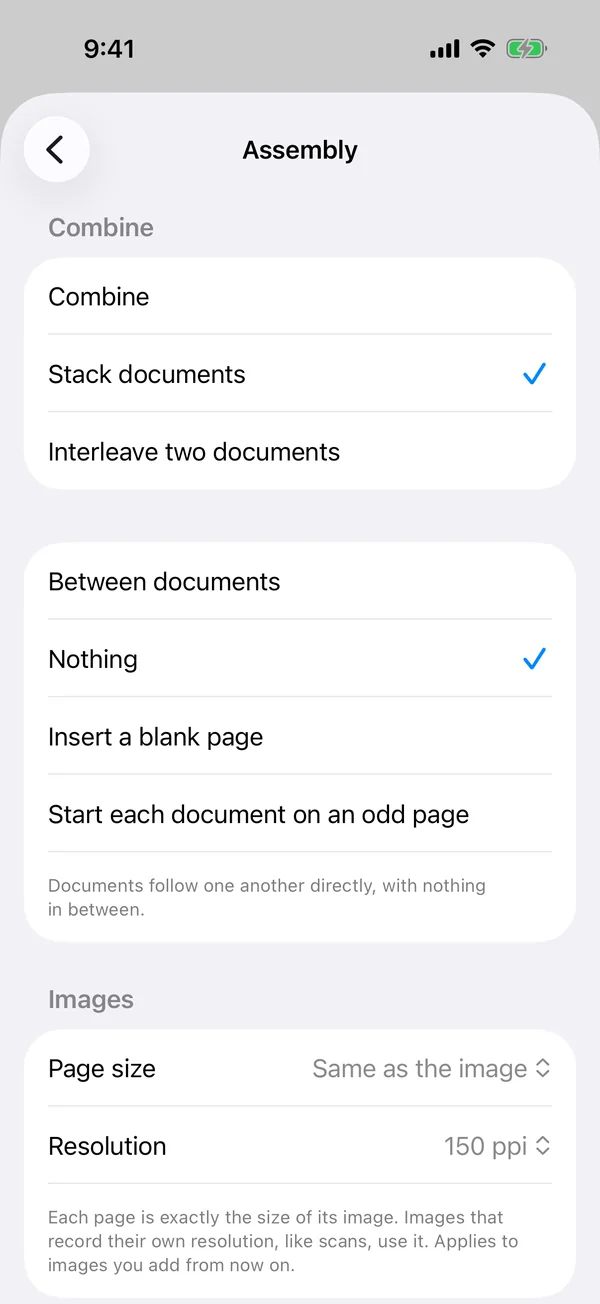
To change it, open Settings › Assembly and look under Images:
- Fit on Letter paper or Fit on A4 paper. The default is the one used in your region.
- Same as the image gives a page exactly the size of the picture. For pictures that don’t record their own resolution (most photos), choose 72, 150 or 300 ppi under Resolution. Higher numbers make smaller pages. Scans that record a real resolution always use it.
The setting applies to pictures you add after changing it, so choose it first. To change a picture that’s already in the list, remove it and add it again.
Combine images and PDFs on a Mac
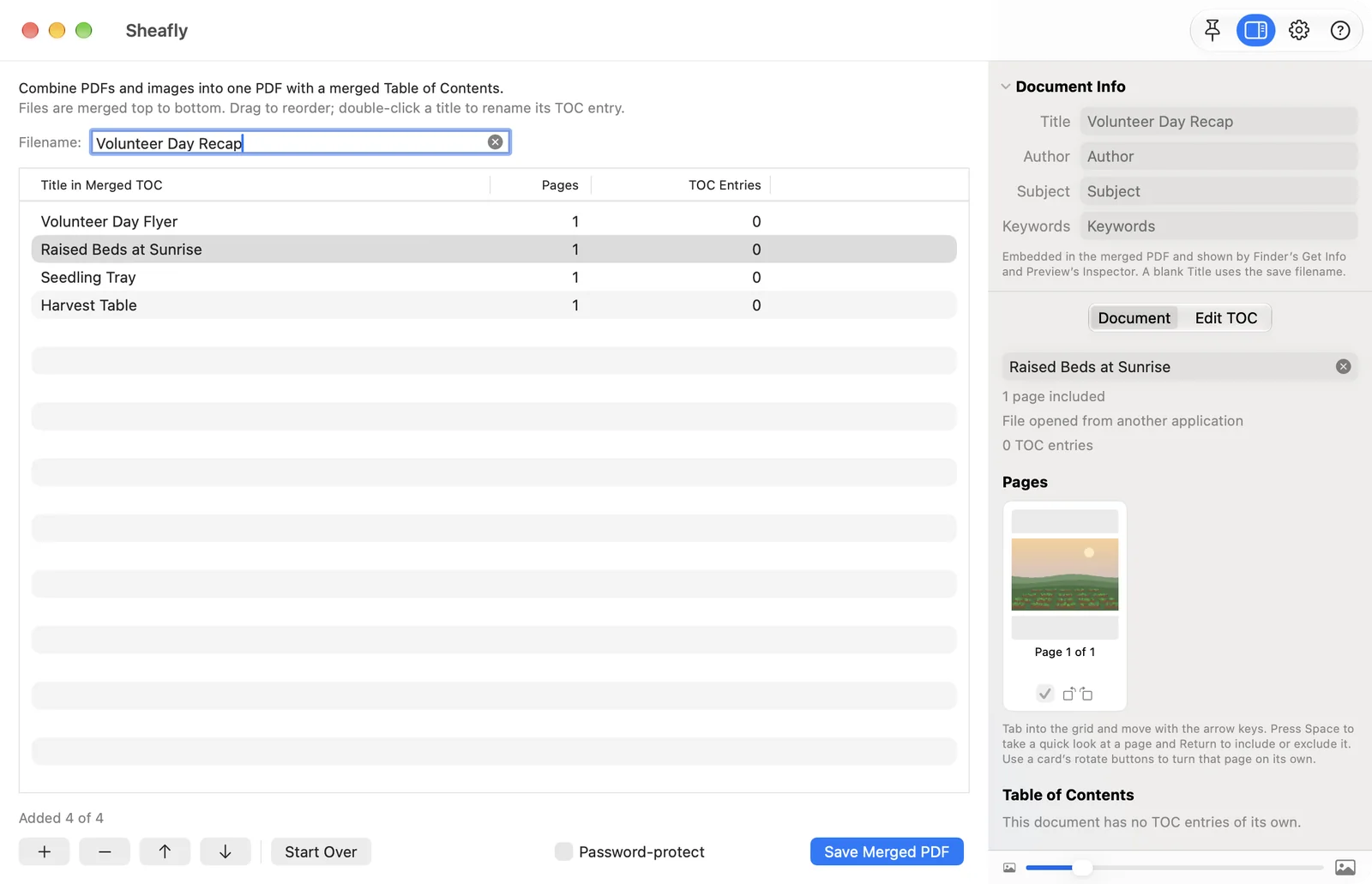
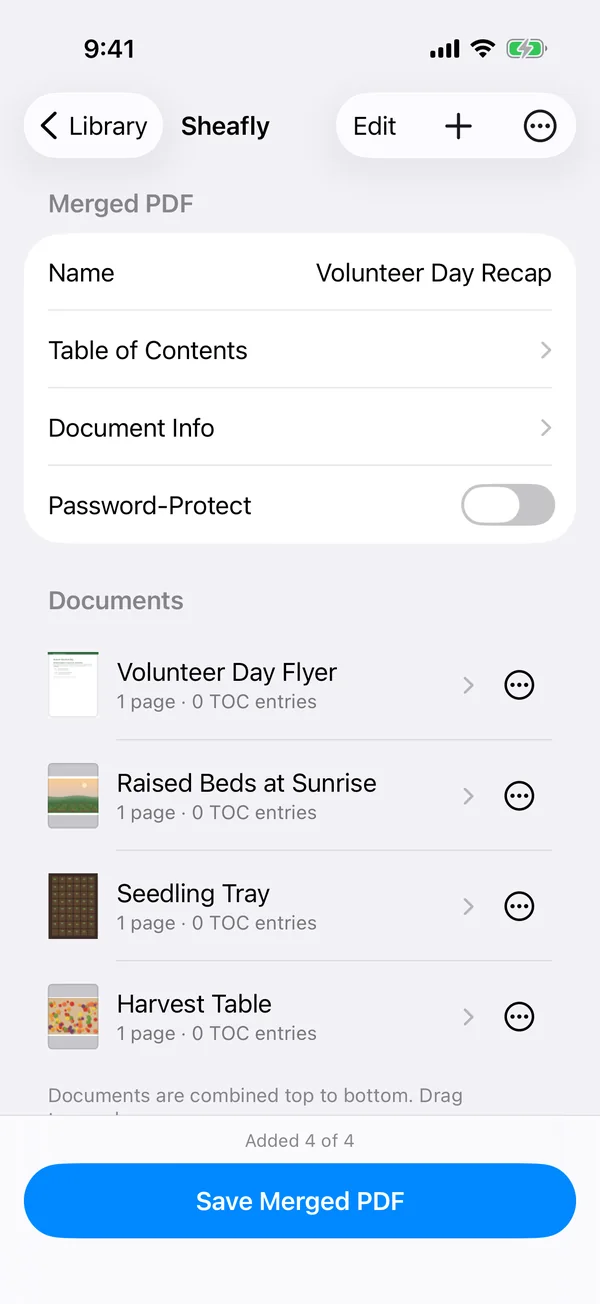
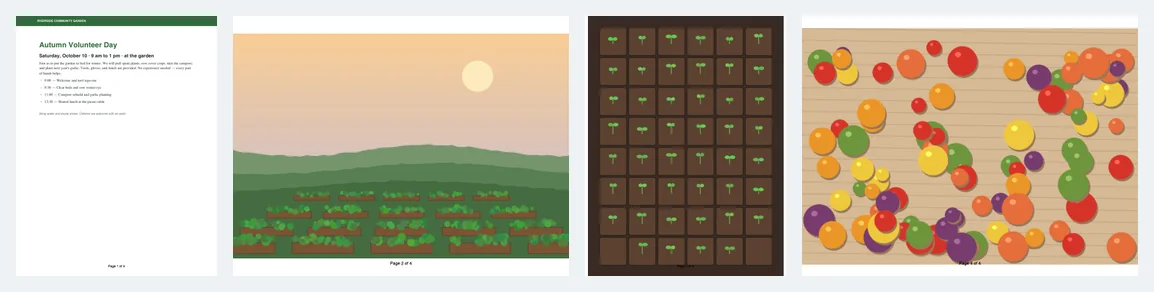
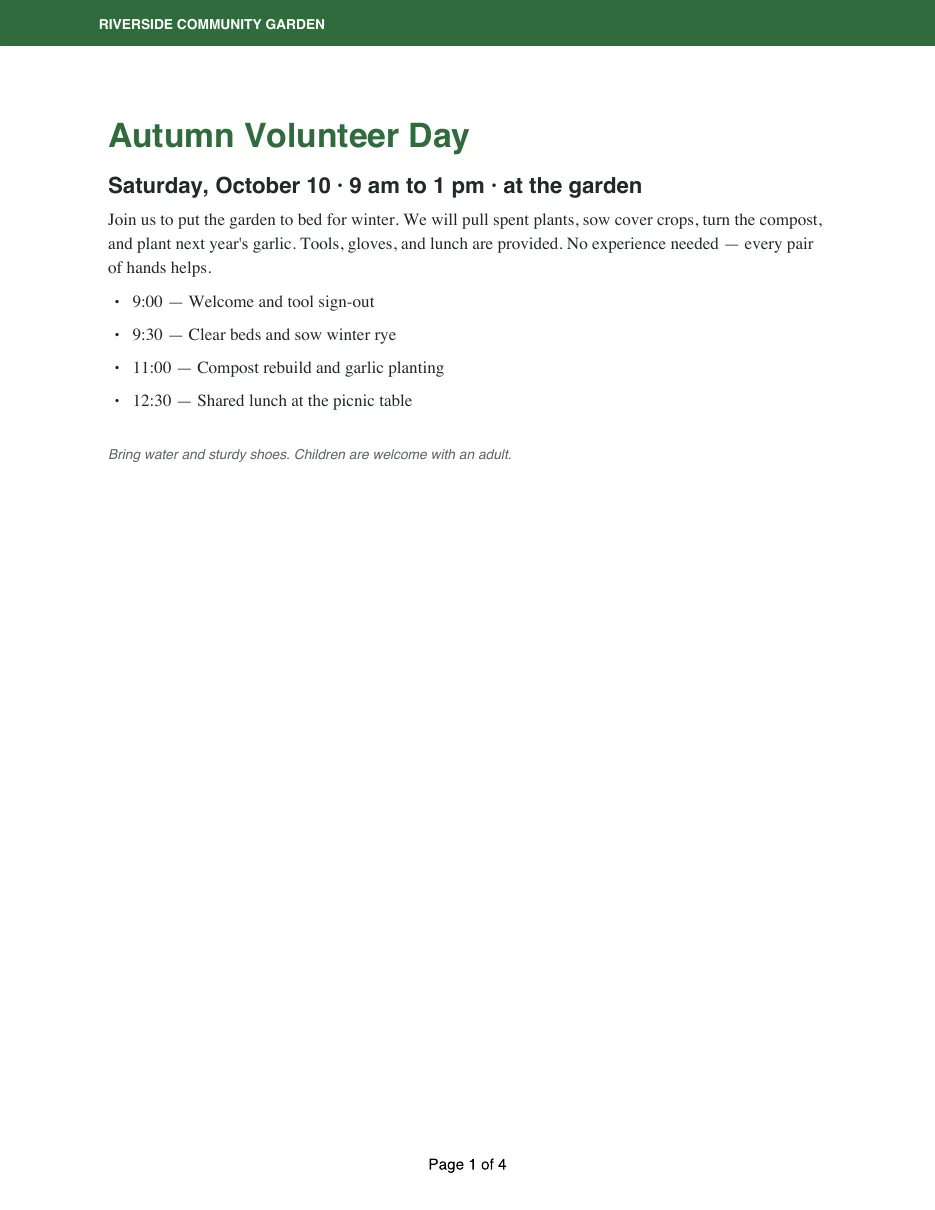
Our example is a Volunteer Day Recap: a one-page PDF flyer followed by three pictures (two JPEGs and a PNG, one of them in portrait).
- Add everything at once. Drag the images and PDFs onto the Sheafly window, click +, or paste an image from the clipboard. Sheafly accepts PDF, PNG, JPEG, TIFF, HEIC, and more.
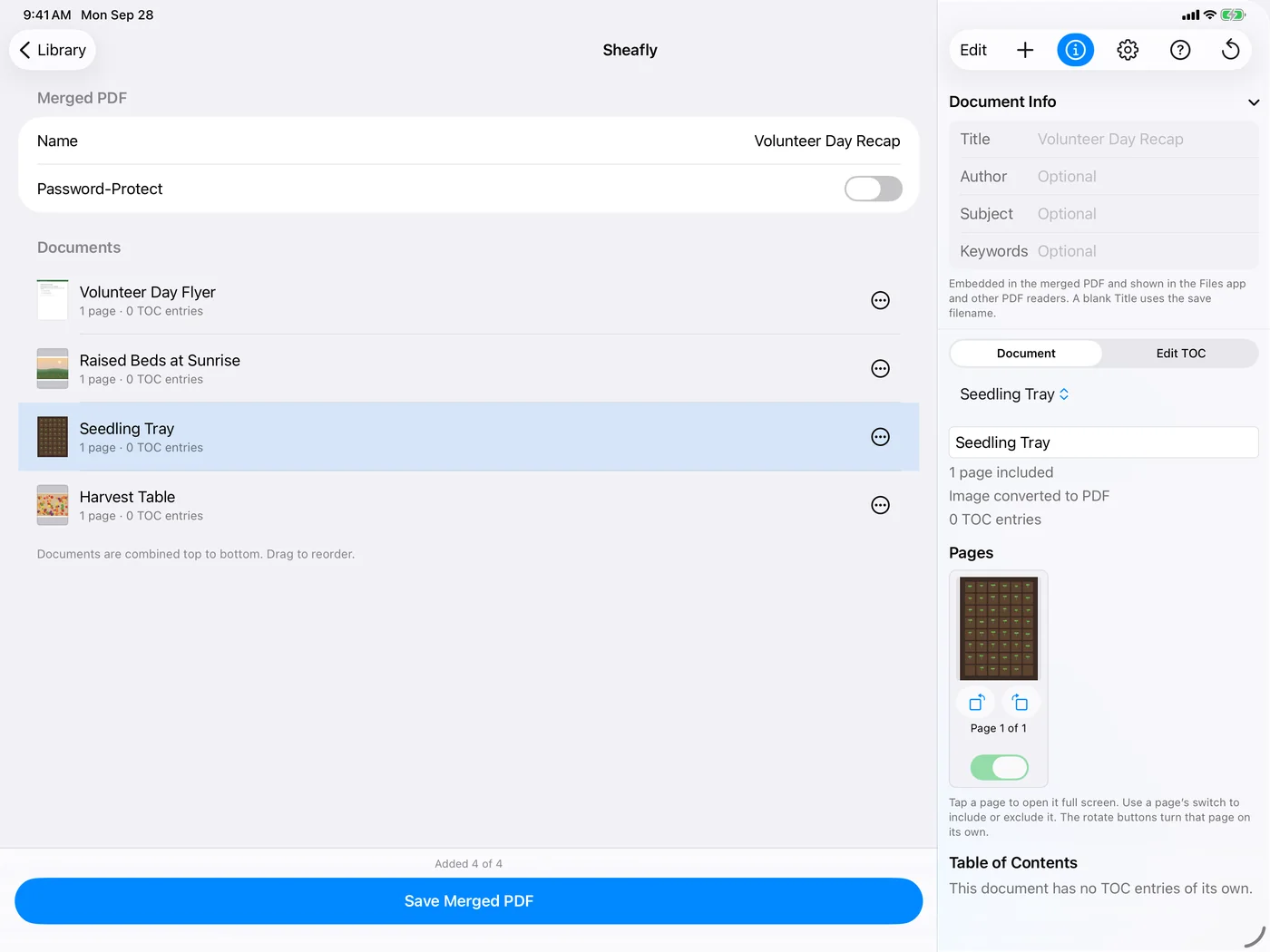
- Set the order. Drag rows, or select one and use the arrow buttons. Here we moved the flyer to the top.
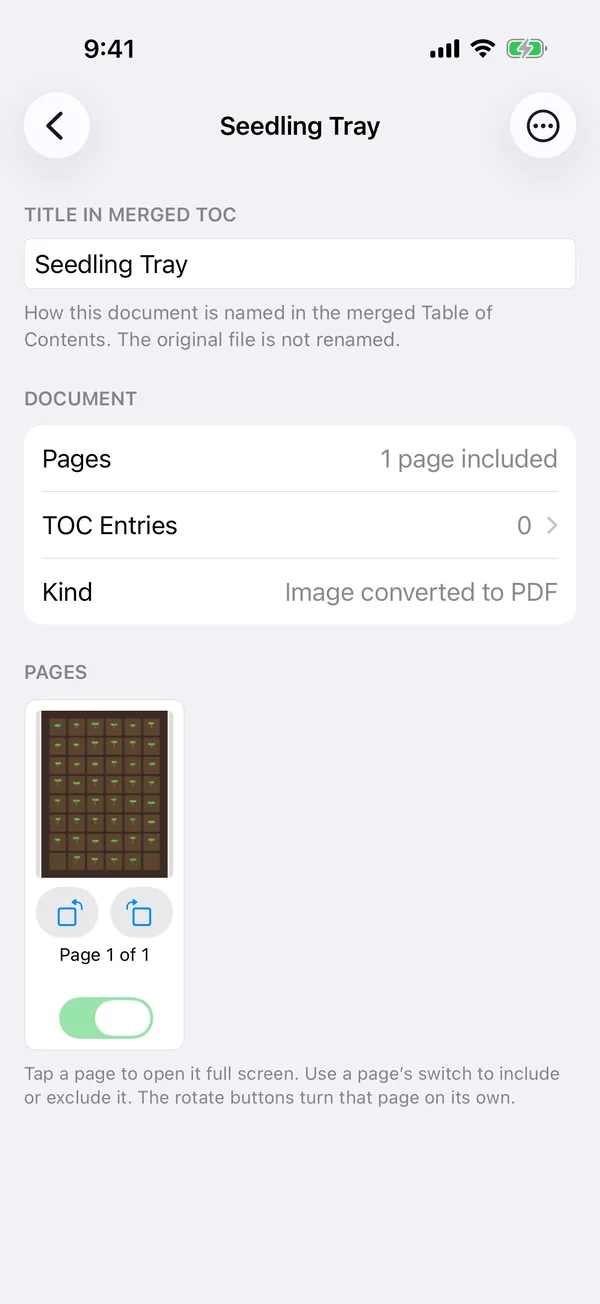
- Check each page. With the Inspector open, select an item to see its page. Use the rotate buttons to turn a sideways photo, or untick a page to leave it out. Each file becomes a top-level bookmark named after its title in the list, so rename them if you like.
Add page numbers
- Open the stamp settings with Stamps › Stamp Settings (or Settings › Stamps) and turn on Add headers and footers.
- Type into any of the six spots (left, centre, or right of the header or footer).
Page {page} of {pages}in the footer’s centre gives “Page 3 of 7”. You can also use{title},{date}, or any fixed text. - Pick a text size from 9 to 18 points and a date format, then save as usual.
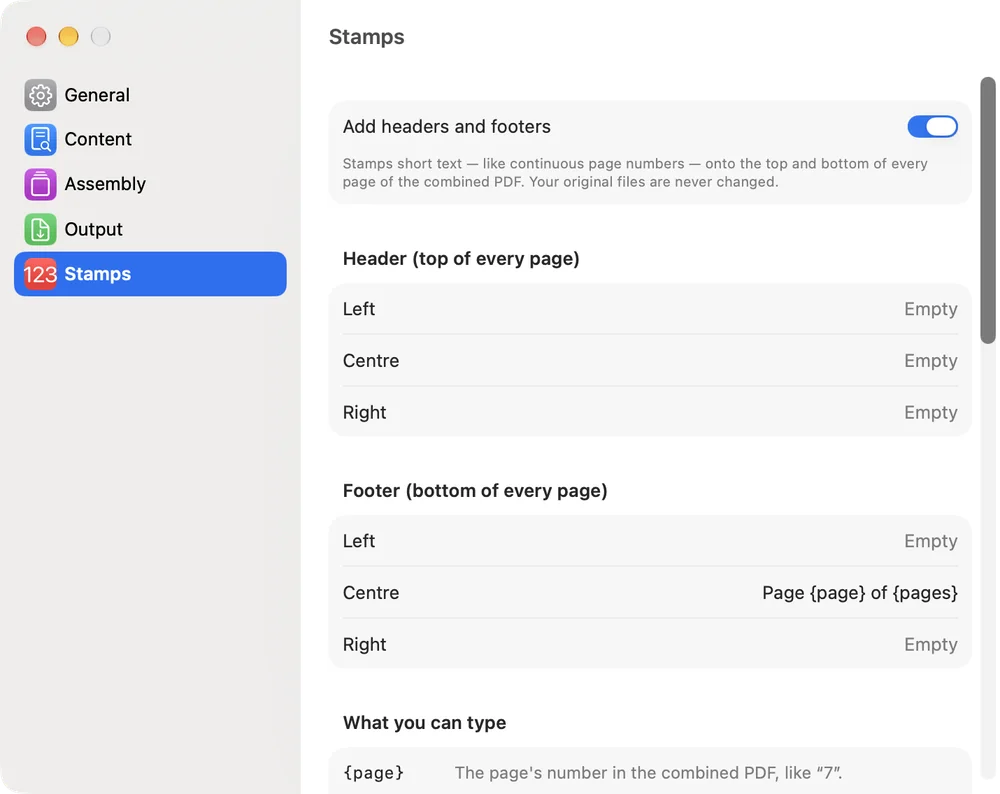
Numbers run continuously across every file in the merge. Blank separator pages can be skipped, and a generated contents page isn’t counted: in our merged handbook, the first chapter page after the contents page is “Page 1 of 7”.
On iPhone or iPad
- If you want a different page size for pictures, set it first: on Sheafly’s home screen, tap the gear button (Settings…), then Assembly.
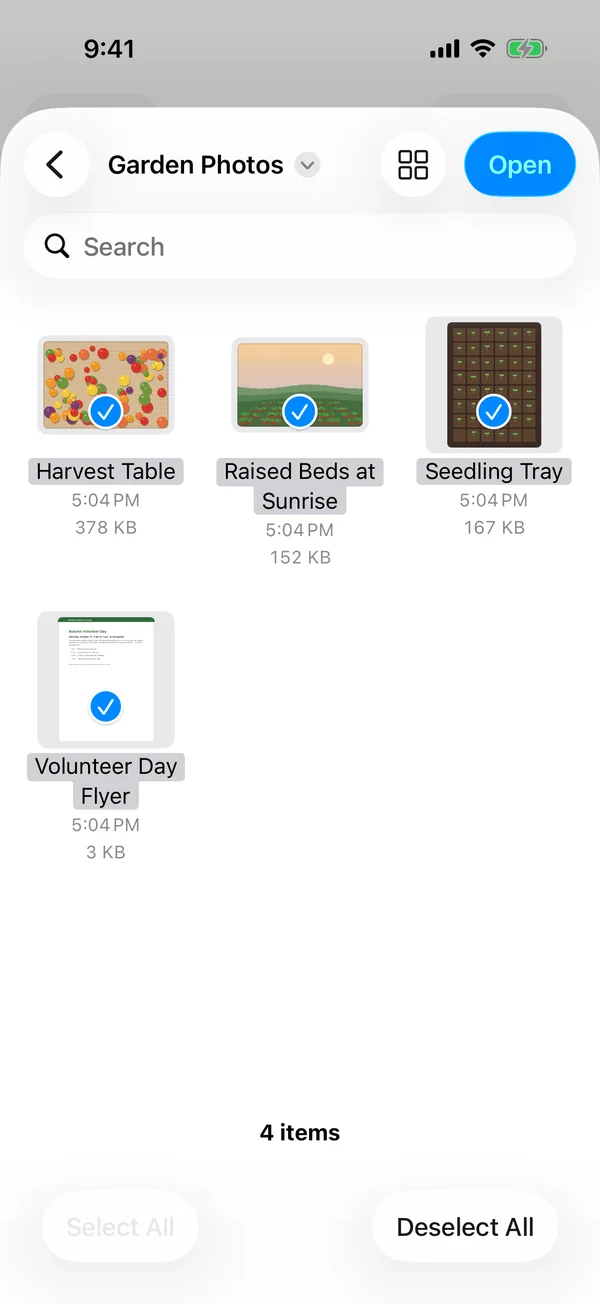
- Tap New Session, then Choose Files…, and select the photos and PDFs. Pictures saved in the Files app work directly.
- Tap Edit to reorder, then the checkmark (Done). Tap a document to see its page, rotate it, or leave it out.
- For page numbers, open Settings… › Stamps and turn on Add headers and footers. The footer’s centre already holds
Page {page} of {pages}. - Tap Save Merged PDF. The PDF lands in Sheafly’s library and opens in the viewer.
The result
The saved recap has four pages: the flyer, then one page per picture. Each picture landed on a Letter sheet turned to match it (landscape, portrait and landscape), with the footer on every page at its normal size. (Before version 2.1, Sheafly trusted the “72 dpi” label, and the widest of these photos became a page 33.3 inches wide.)
Limits
- Pictures are shrunk to fit, never enlarged. A small picture sits at its natural size in the middle of the page rather than being blown up blurry. Choose Same as the image if you want the page to hug the picture instead.
- Pictures are encoded once when they’re turned into PDF pages. For a smaller file to email, choose Settings › Output › Reduce file size. Text is never altered.
- Searchable text and photos. If Make scanned pages searchable is on, pictures with no words in them can produce a harmless “Text could not be recognized” warning. Pictures of documents, on the other hand, become searchable. See how to make a scan searchable.
- Page numbers are part of the page. They can’t be selected or deleted later, so check them in File › Preview (⌘P) on Mac before sharing.


Try it on your own files
Sheafly is a one-time purchase on the App Store, and one purchase covers Mac, iPhone, and iPad. No subscription, no account, and your documents never leave your device.

Requires macOS 14 or later, or iOS/iPadOS 17 or later.
More Sheafly guides
- How to merge PDFs and keep their bookmarksCombine chapter files into one PDF with every bookmark still linked to the right page.
- How to add or edit a PDF’s table of contentsAdd, rename, indent and remove bookmarks, and print a linked contents page.
- How to make a scanned PDF searchable without uploading itOn-device OCR adds invisible, searchable text to image-only scans.
- How to watermark and password-protect a PDFStamp Draft or Confidential on every page, then encrypt and restrict the file.